SoundTower
Software
ADRENALINN
II SE
v5.0
User
Guide.
Copyright
© 2006 SoundTower Software
www.soundtower.com
professional
support for:
Roger Linn Designs
Adrenalinn
II™
Beat - Synched Filter FX + Amp Modeling + Drum Box
UPDATING ADRENALINN II OPERATING SYSTEM
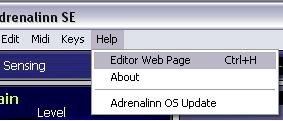
Select Midi Out port your Adrenaline is connected to (See: MIDI SETUP). To update Adrenalinn OS to version 2.x you can use the editor's update function located under File menu.
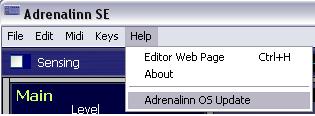
The file dialog will prompt you to open a sysex (.syx) file containing the software update. When you open sysex file, the "Transmit" dialog will appear. Press Start. Adrenalinn's LED display will start blinking and counting down to "t 0". Wait with any actions before Adrenalinn reboots itself. Do not turn power, do not use editor's controls while sending the update.
Because of the design nature of Adrenalinn II and it's Midi Implementation, the editor requires Adrenalinn to be connected by both: Midi In and Midi out connections to your computer's Midi interface.
For the editor to communicate with Adrenalinn you need to select the Midi interface to which Adrenalinn is connected to in the editor's MIDI Setup window:
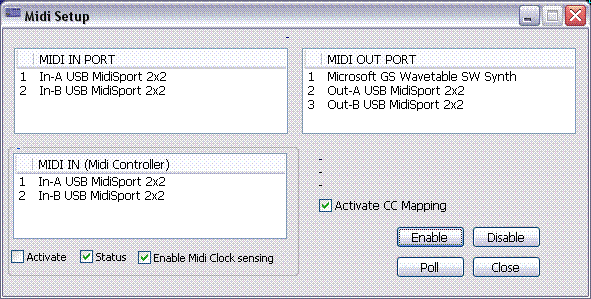
To open MIDI Setup, click on Midi menu and select MIDI Setup or use computer's shortcut key F2.
In MIDI Setup, select both MIDI In and MIDI Out ports where Adrenaline is connected. If MIDI communication is working correctly then Adrenalinn's ROM software version will be displayed in on top of the MIDI Setup window.
Important: Adrenalinn's ROM software version DOES NOT show when using Adrenalinn OS older than 2. You need to update Adrenalinn OS to version 2.x.
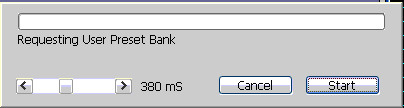
To receive all user data from Adrenalinn, select "Receive User Data" form Midi menu or use Ctrl+R. and press start. If for some reason your Midi interface can not keep up with fast coming midi messages, you can adjust timing by adding delay in milliseconds.
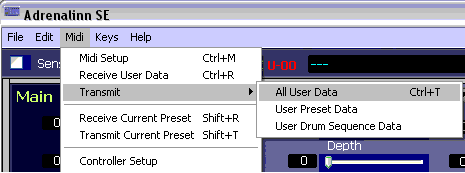
To transmit User Data from the Editor to Adrenalinn select "Transmit" from Midi menu. Here you have few choices to send only Drum Beat bank or Preset bank or all data.
The data you send will be written into Adrenalinn bank memory overriding existing Presets and Drum Beats. Transmitting bank data takes little bit longer than Receiving because the editor has to wait till Adrenalinn performs actual writing to its flash memory and sends the "Ready" message.
Changing preset parameters is very simple. You can use sliders, computer arrow keys to increase or decrease values by 1. If your mouse is equipped with a scroll wheel, you can simply move mouse cursor over a control or its label and scroll. While using a mouse wheel, you do not even have to click on any controls to change values.
SELECTING PRESETS FOR EDITING OR AUDITION
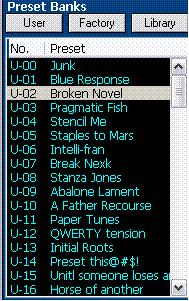
After Receiving User Data, the preset names are displayed in "Preset Bank" section. Adrenalinn does not use patch names and patch names are not stored in any way in Adrenalinn's box. Patch names you see in the editor's banks are created by the editor itself. The editor's patch names are created for an easy recognition of Presets or Drum Beats. The are based assignment of Effect and AMP in a preset and presented in abbreviated form. Of course you can rename them if you like by double clicking on them.
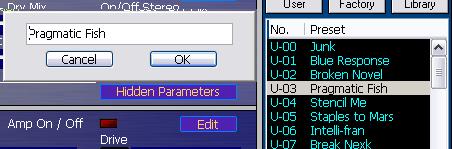
The Preset bank section can be used not only to select and display Adrenalinn's internal presets but also to perform Preset copy/paste functions:
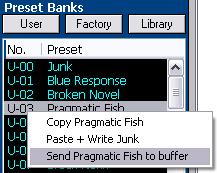
Copy command copies selected Preset to editor's clipboard.
Paste + Write sends and saves copied Preset to Adrenalinn
Send To Buffer sends copied Preset to Adrenalinn's edit buffer without writing it to the user bank.
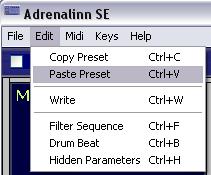
If you use copy function from window's Edit menu, the edited Preset will be copied.
If you use paste function from window's Edit menu, the copied Preset will be pasted to Adrenalinn's edit buffer without writing it to the user bank.
COPY AND PASTE OF PRESET GROUPED PARAMETERS
To further increase functionality of the editor we added separate Copy and Paste functions for preset grouped parameters. This way for example you can copy all effect settings from one Preset and seamlessly apply it to another. This is true for each of the grouped parameter settings.
Effects to Effects:

Amp to Amp:

Delay to Delay:

and Filter Sequence to Filter Sequence.
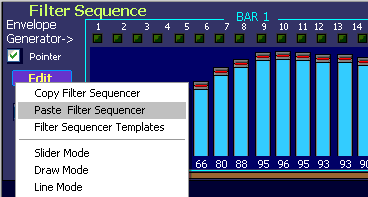
To recap, preset grouped parameter functions are:
Copy/Paste of Effect section
Copy/Paste of AMP section
Copy/Paste of Delay section
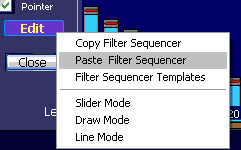
Copy/Paste of Filter Sequence
This feature has been added to help debug both the editor and Adrenalinn OS ver 2. We left it in the editor because it can be used to update the editor when manual changes are done using knob on Adrenalinn and to display the parameter change. Its function is to automatically request Preset and Drum Beat edit buffers in 1sec time interval.
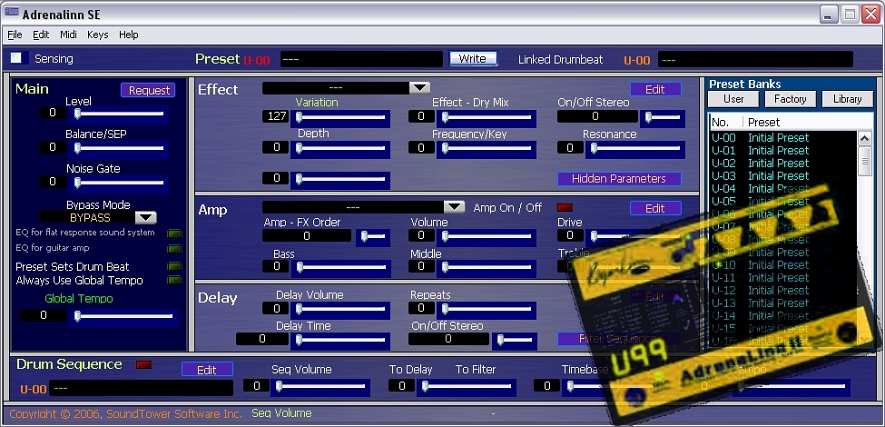
Main parameters of Adrenalinn were added in OS version 2 . The Main settings are independent of any preset or Drum beat setting. Here you can adjust the main output level, balance between Drum Beat output level and processed Input signal, Noise Gate, Bypass Mode.
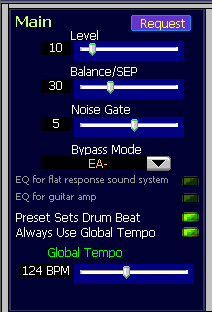
Note: EQ for flat response and EQ for guitar amp parameters are not midi selectable. Their state is shown in the editor just for your reference.
For more information about Adrenalinn MAIN feature please refer to AdrenaLinn_2_MIDI_Implementation document.
There are now three editing modes (up from the two in v.2.0) you can use to adjust Filter Sequence step values.
Using standard slider controls
Free Hand
Line
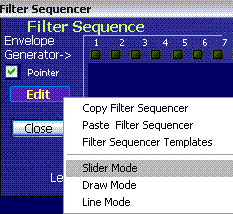
In "Slider" mode you change one slider at a time.
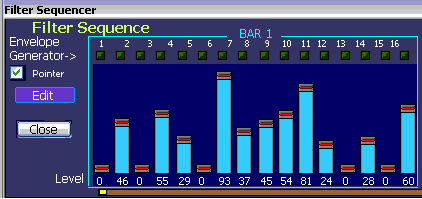
The "Draw" mode lets you simply drag your mouse across step controls to "draw" them quickly to desired positions and quickly create right sound effects or simply reset them.
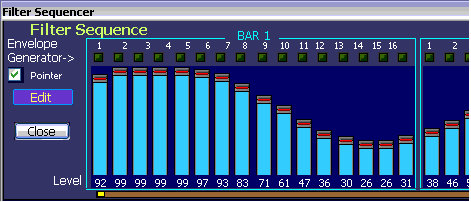
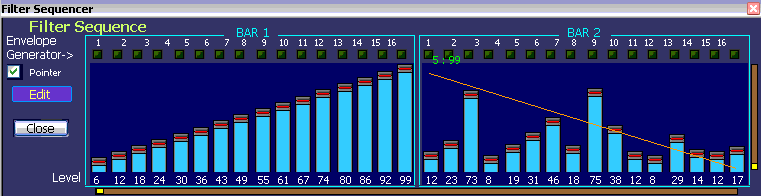
In "Line" mode you anchor the high or low point and move the mouse to low or high point to create an perfect linear slope. Great for creating triangle forms.
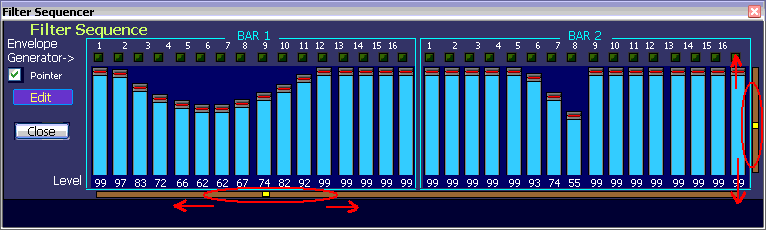
The editor also lets you linearly raise all 32 Filter Sequence step values up or down, move them across from right to left and vice versa by using "group" sliders.
If you like to copy Filter Sequence settings to apply them to some other Preset use Copy/Paste functions or store them in Filter Sequence templates.
WRITING/SAVING PRESET TO ADRENALINN
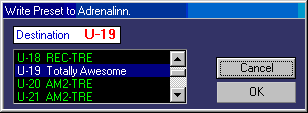
Use WRITE button if you like to save edited Preset to Adrenalinn. In the "Write..." dialog you can select current or new target location within the user bank.

The Drum Sequence section of the main editor's screen shows Drum Beat linked to a current Preset with some parameters (Seq. Volume, signal sent to Delay or Filter, Timebase and Tempo.

To change linked Drum Beat from the main editor screen simply move your mouse over the Drum Beat name label and use computer's arrow keys or mouse scroll wheel.
As you may already
know Presets and Drum Beat are stored and accessed separately. If you like
to edit or create your own Drum Beats then open Drum Edit window by pressing  button or
using computer key F5.
button or
using computer key F5.
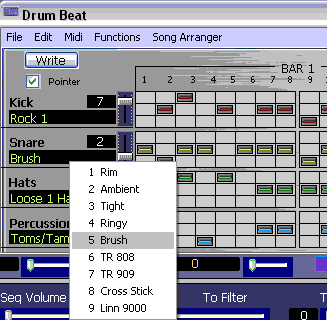
Clicking on Kick, Snare, Hats or Percussion labels displays a menu with available corresponding samples. Beside them are Level sliders. Designing Drum Beat patterns is very simple. There are 35 step where you can place drum notes for Kick, Snare, Hats and percussion. Placing of drum notes is done by clicking your mouse on a grid. To remove drum notes - simply click on them to make them disappear.
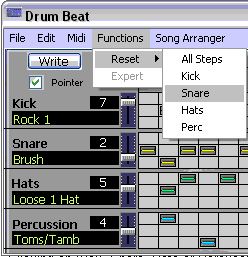
There are also some automation functions available to control Drum Beat patterns.
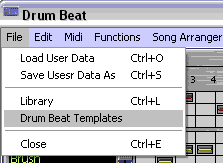
There are also Drum Beat Templates available where you can have your sets saved and ready to be applied (See: Templates above).
On the right side of Drum Beat Edit window are Drum Beat bank where you can select Drum Beat for editing. The selected Drum Beat is automatically displayed.
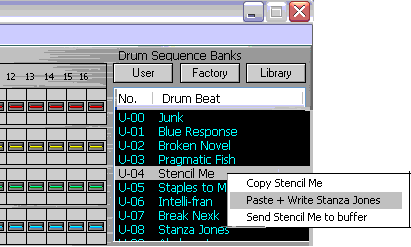
Clicking right button of your mouse displays a pop-up menu with additional functions:
Copy command copies selected Drum Beat to editor's clipboard.
Paste + Write sends and saves copied Drum Beat to Adrenalinn
Send To Buffer sends copied Drum Beat to Adrenalinn's edit buffer without writing it to the user bank.
If you use copy function from window's Edit menu, the edited Drum Beat will be copied.
If you use paste function from window's Edit menu, the copied Drum Beat will be pasted to Adrenalinn's edit buffer without writing it to the user bank.
Here is where you can really thrive too. It will pay a lot to familiarize yourself with all librarian features.
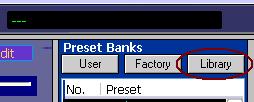
There are multiple points of access to the librarian. By clicking the Library button on the main editor,
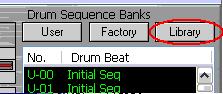
or the Drum Sequence editor.
as well as using File in main menu in either window and selecting the Library in drop down menus:
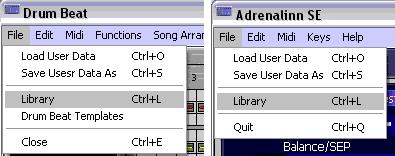
At any time you may also hit ctrl+L and the library will pop open.
Our librarian lets you store unlimited number of Adrenalinn sounds. In addition you can have as many Library files on your computer as you want. Each item stored in the library consists of one Preset and one Drum Beat that was linked to a Preset. This way you never have to worry about loosing your favorite Adrenalinn settings. The librarian provides for you 32 sound categories to organize your sounds and to have them available for immediate use. Initially, we named some categories like "Pop", "Rock" but you are welcomed to rename them according to your styles or needs.
Adding Preset + Drum Beat to the librarian
To add current Preset and Drum Beat,
select a category to which you want to add and press  .
.
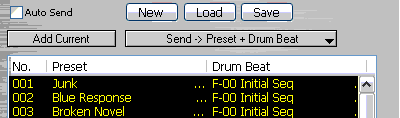
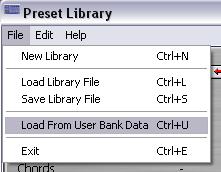
If you like to import whole User Preset bank with all it's assigned Drum Beats use "Load from User Bank Data" function. It is a good idea to Receive all Data first to assure that it corresponds to your Adrenalinn data.
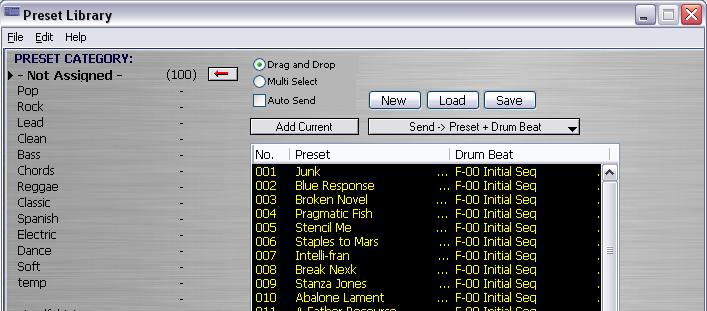
You can use the Librarian to
build a set of Patches from those you are working on in the Editor currently or
by sensed changes from the Adrenalinn by clicking the Add Current button.
The other option is to load
a pre-existing Library on your hard drive or Load from User Bank Data.
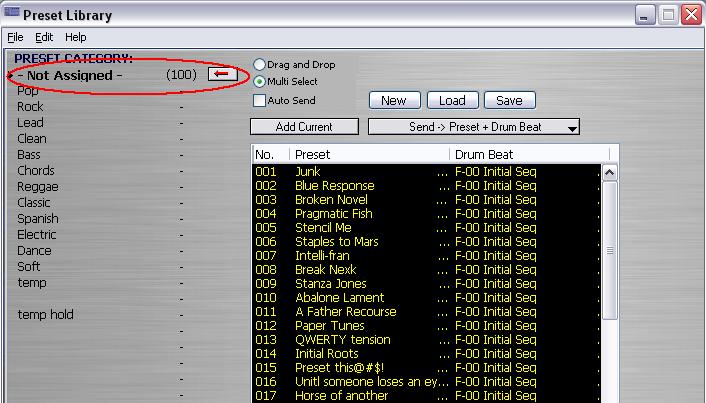
For the next example we
shall load in User Bank Data. This results in all patches being dropped into the
Not Assigned category circled in red in image below.
Adding Preset to the
librarian
To add current Preset select
a category to which you want to add and press the
“-" beside the category to move the arrow button:

Now if we select 004
Pragmatic Fish to be moved from "Not Assigned" to "Rock":
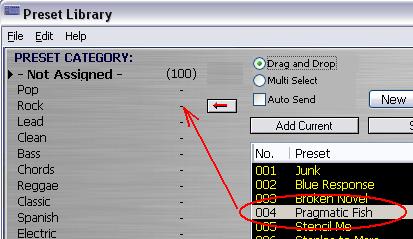
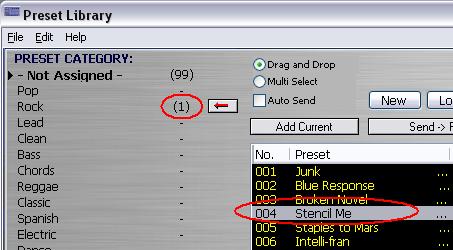
After clicking the arrow we
should see the total number of Preset remain the same but the relative
distribution between categories change. Here we see 99 in Not Assigned and one
in Rock. Also note the list box has adjusted itself making the next preset in
the list, Stencil Me, move from 005 spot to the now vacant 004.
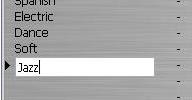
All categories can be
renamed. In the image below, after the empty category field was clicked once and
rename category is selected from the Librarians File menu, we create a category
Jazz by just typing.
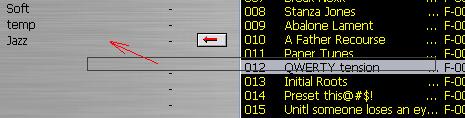
A single click on the JAZZ
preset and you select it for movement to the new category by clicking the arrow
button or simply dragging and dropping it with the mouse.
Note also that if the
Multi Select option is checked
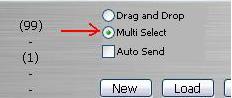
then if is a simple matter of highlighting a range of preset with a drag of the cursor
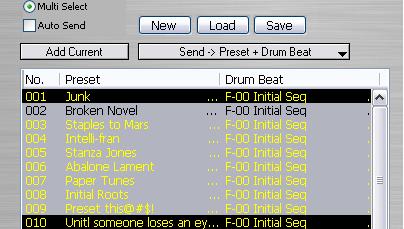
or select
non-congruent individual presets by ctrl + click
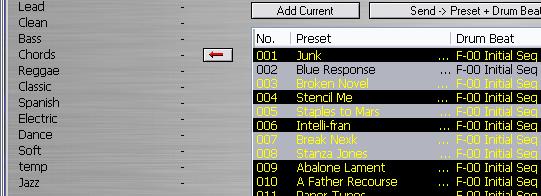
you can move them with cursor or with the arrow button

Note that 5 presets were selected and 5 show up in the category. The
other category the presets were taken from adjusts automatically.
Any preset or group
of presets in the list box can be selected and copied by Copy in Edit in
Librarian menu. The selected group can then be Pasted by using the Paste in Edit
in menu to copy the selection, with altering the original set of presets, to
another category.
In this way the Librarian
can be used to select and sort the entire Preset banks for more functionality
suited to the individual musician.
TEMPLATES: COPY/PASTE PRESET GROUPED PARAMETERS
To further
increase functionality of the editor we added separate Copy and Paste
functions for preset grouped parameters. They are:
·
AMP
·
EFFECT
·
DELAY
This way for
example, you can copy the different grouped parameter settings from one Preset
and seamlessly apply it to another by use of the Template system.
For instance if
you a have selected the preset called Stencil
Me (renamed for fun) and want to copy and paste the AMP parameter values go to
the AMP panel and click on “Edit”.

From the drop down menu
select Copy Amp.
Selecting Copy will sends
the parameters to Clipboard for Pasting to other Patch’s Amp grouped
parameters you might select next. In the case below we have selected Staples
to Mars as
the patch and are set to Paste Amp parameters from Stencil Me.

Further, if you had selected
the Amp Template with Stencil Me you will open a Template window that will have a
mirroring control panel. You may then Add the Patch for use at a later time as a
Template. (As demonstrated in image below)

You can do this
over and over for one Preset after another, modify them in the Template window
and see the change on the main Editor window. If the result is of interest you
can then hit Add Current again to save this to the Template list.
The power of the
Template system is in the one click application of the desired grouping of
parameters to another Preset in real time. Any Template in the list can be
clicked on when after you have changed to a different Preset and it will be
immediately applied to the new Preset. You will then see the parameters change
on the main editor window and in the sound of your output.
Templates allow
you to browse through AMPS, FX and DELAY settings from all presets in
the user bank on the fly. You can preload those settings by selecting “Preload
from Setting User Bank” from file menu.
Preset grouped
parameter functions are:
·
Copy/Paste of
Effect section
·
Copy/Paste of AMP
section
·
Copy/Paste of
Delay section
CONTINUOUS CONTROLLER MAPPER
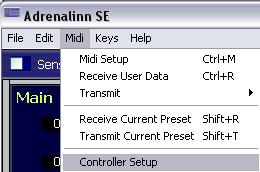
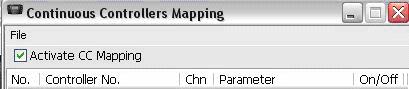
In the
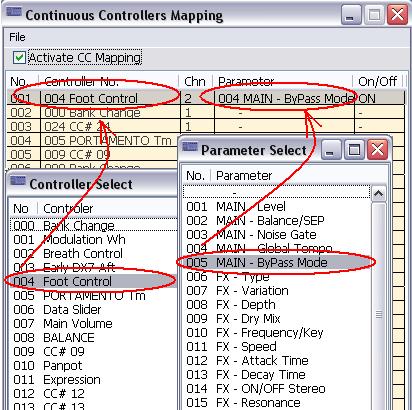
Continuous Controllers Mapping window you are given several options for control.
You will
see five columns.
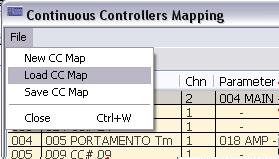
In the
Continuous Controllers Mapping window menu you have the option of creating New,
Loading saved or saving created maps.
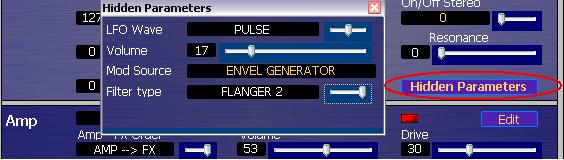
HIDDEN PARAMETERS
There are several parameters that are not
easily accessible to the user. The Adrenalinn II SSE gives access to these by
the Hidden Parameters window. Click on the  button in Effect panel in main editor window. From here LFO Wave form, Volume,
Mod Source and Filter type can all be modified through interaction with this
window.
button in Effect panel in main editor window. From here LFO Wave form, Volume,
Mod Source and Filter type can all be modified through interaction with this
window.