Evolver/PolyEvolver
SoundEditor Librarian
The Librarian window contains 32
sound categories  and a
program list
and a
program list  which
display the contents of each category. A further improvement included in the Evolver/PolyEvolver
SoundEditor v. 3.2 is a separate display box listing all the sounds currently in
the Bank being organized is included to the left most side of the window
which
display the contents of each category. A further improvement included in the Evolver/PolyEvolver
SoundEditor v. 3.2 is a separate display box listing all the sounds currently in
the Bank being organized is included to the left most side of the window  .
.
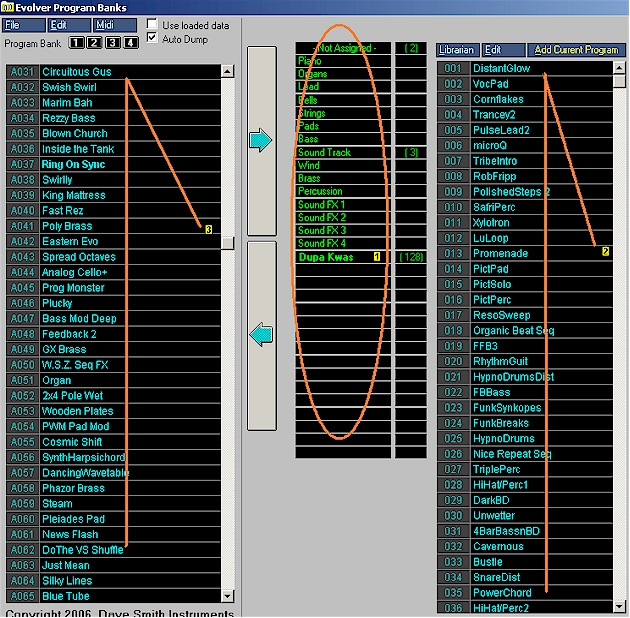
The selected sound category is
indicated by boldface type .
As an example, in the above figure, Dupa Kwas is the current sound category,
and contains 128 programs. The programs contained in this category are displayed
in the listing on the right, beginning with Program 001
“Distant Glow”. Note: When the number of presets
exceeds what can be displayed in the list window, the program
adds a scroll bar to provide access to the complete list of presets (see above.)
You can change to a different
category simply by clicking on the desired sound category name.
For example, in the figure
below we selected the Sound Track category which only contains three presets:

The Librarian’s "Add Current
Program"
button adds the current preset from the Librarian's User Program Bank to the selected sound
category. Note that new entries are always added to the end of the list so, if
you have a lot of presets in a particular category, you may have to scroll down
to see the new entry.
You import all programs from
selected Editor's User Program Bank into the Librarians' Program Bank window using the Program Bank
buttons:  .
.
You
can also import the sounds from the Program Genetics Top Offspring bank using
the Add From Top Offspring command found in the Librarian option. (These
go directly to the Librarian list box to the right of the window.)
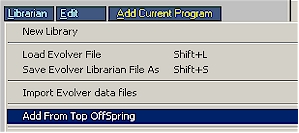
An important feature of the
Librarian is that it can load Libraries previously saved from Phantom Banks ( .els
) or when previously saved from main window File menu ( .elv ) as well as Sysex files
( .sys ).
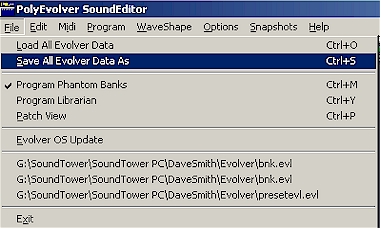
When saving a Library, when in Librarian, all Category selections,
contents and names are saved as well with extension .elr . When loading the library of
choice the modifications to that library are will not effect the library unless
the user saves the changes with the same name as before. The original
library is then overwritten.
It should be noted that though there are 32 Categories provided
to each saved library there is no real limit to the number of categories a user
can generate. The Librarian allows for as many Categories as needed to be saved
in structured units of 32.
When the Evolver/PolyEvolver SoundEditor is shut down the last
setting is saved for the Librarian and is displayed when Evolver/PolyEvolver
SoundEditor is restarted.
As can be seen in the Main window File option and the Librarian
drop down menu a Recent File History is generated to allow for more convenient
loading of commonly, or last used, files (above and below.)
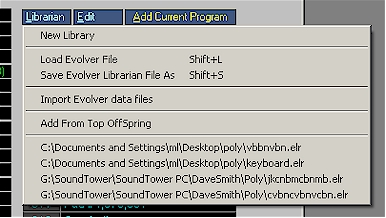
Organizing Presets:
A particularly useful feature of
this new Librarian is that multiple sounds can be selected  and moved as a group to a pre-selected category
  by clicking the arrow button
  .
(Step by step this was done by: first left click on the first sound in a sub-list
that you organized in the Program Bank list box and, while the left button is
still depressed, moving the pointer up or down to select as many more sounds as
needed ).
.
(Step by step this was done by: first left click on the first sound in a sub-list
that you organized in the Program Bank list box and, while the left button is
still depressed, moving the pointer up or down to select as many more sounds as
needed ).
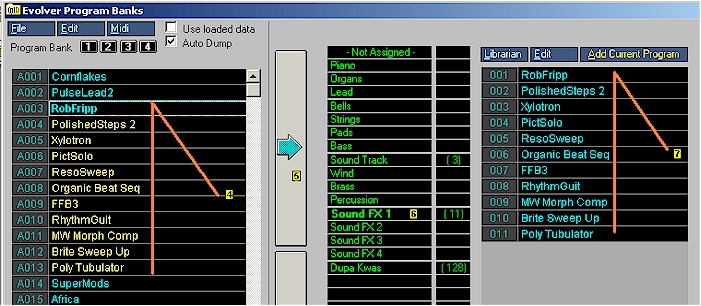
Note that the list selected in
is now reflected as a list  held in category Sound FX 1 .
You can also drag programs from the
User Bank to the Library directly one at a time if you don't want to select
multiple sounds to move with the large arrow button. Prearranging programs in
the User Bank as needed makes it easier to move as a group.
Auto Dump/Use loaded data
Features
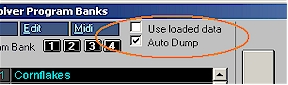
Two features for improving control are found in two check boxes
as circled above. The "Use loaded data" if selected - will allow the
editor to send selected programs instead of switching Evolver's bank
programs. The Editor's loaded banks are not effected.
The "Auto Dump" feature when checked allows for
programs from Library to be automatically sent to Evolver/PolyEvolver for instant
auditioning.
Sending Programs to Evolver/PolyEvolver:
There are several options when
moving sounds from the Library to the Program Bank. You must select one or more,
as described at the beginning of this module, and use the large back arrow
button. A message dialogue box will appear and give you three options (see
below)
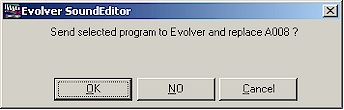
In the case above there is only one sound selected. Selecting OK
will move sounds from the Library to the Program Bank list and to Evolver/PolyEvolver
SoundEditor User Bank and to the Evolver/PolyEvolver itself. The Library program will replace (write) the currently
selected program in the Editor User Bank, and be written to the Evolver/PolyEvolver
SoundEditor at that program location, in this case A008 in selected Bank A.
Any preset existing at the time of transmit in the Evolver/PolyEvolver SoundEditor
is lost. Choosing NO writes the sound to the editor only and Cancel does just
that: cancels the request and changing nothing.
For a multiple sound selection from the Library the selections
in the message dialogue box is identical. It will look like the following:

Note that selected programs start replacing sounds at A008 which
was pre-selected in the list box to the left. A008 corresponds in this case to
sound, "PictSolo." In this example the send is complete and the screen
shot is set to show the event after the fact for demonstration purposes.
Once a Library is organized in the
manner most suited for the users needs it can be saved by using the drop down
menu under Librarian.
A sound or category can be
eliminated entirely by right clicking on it or using the Delete or Cut option
under Edit menu.
The Librarian allows for renaming of
individual sounds and the category it is under in two ways. Under Edit
the user can select Rename (Shift-N) or Rename Category (Shift-R)  and have the selected sound name or (in the case of the example below) the
selected Category open for renaming by simply typing.
and have the selected sound name or (in the case of the example below) the
selected Category open for renaming by simply typing.
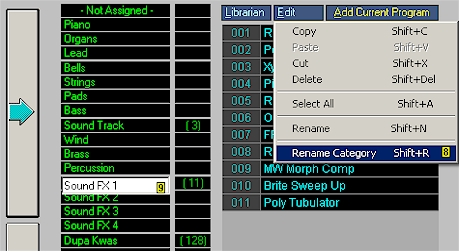
The Category or sound/program name
can also be double clicked on to open the rename option as in  .
.
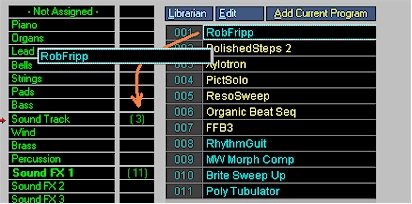
Programs can be moved from one
category to another by dragging them with the mouse. Below we are dragging
program 001 ‘RobFripp’ from the Sound FX 1 category into the Sound
Track category:
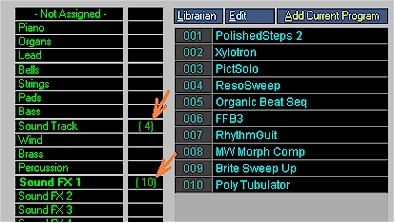
And here is the result. Note that
after the move the number of programs in the Sound FX 1 category is now 10, and
1 more program is now in the Sound Track category bringing it's total to 4:
New Library
The New Library command found
under Librarian menu allows you to create a new Library. After selecting New
Library, you’ll see a message dialog asking if you wish to save the
existing library:
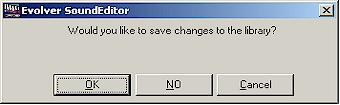
Clicking the OK button will
present you with a ‘Save Program Library’ dialog box that will allow you to
name and save the current library to the location you specify.
Evolver/PolyEvolver SoundEditor will automatically append the ‘.elr’
suffix to the saved file name. Clicking the NO button will clear the
existing library including all 32 categories, leaving an empty library. Clicking
the Cancel button will cancel the operation and return you back to the
library unchanged.
The Load command allows you
to load a library file into the program. Library file names have the extension
‘.els’. When loading a library file, all file types will be displayed, but
only those with an ‘.els’ extension will load. All other files will be
ignored. The Save command allows you to save the library file, displaying
a dialog box that will allow you to name and save the current library to the
location you specify.