 button to display Common parameters window:
EDITING COMBINATION PARAMETERS
COMMON PARAMETERS
To edit Common settings click
button to display Common parameters window:

MASTER EQ
Clicking the  button opens the master equalizer window.
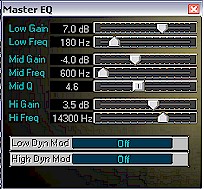
From here gain (low, mid and high), frequency (low, mid and high) as well as mid Q adjusted with the sliders.
The choice of controller for low and high dynamic modulation is done though name boxes:

Program COMMON PARAMETERS
To edit Karma EditPro program Common settings
click button to display Common
parameters window:
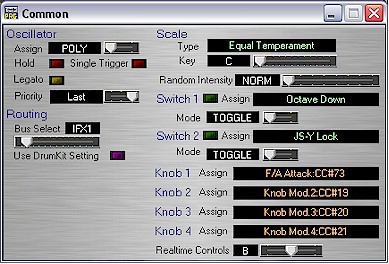
Note that Knobs 1 - 4 can be assigned to control
of choice by clicking on name box and selecting from list. Drum kit settings can
be used by clicking  .
.
SIGNAL FLOW
To enter the Signal Flow window click on  button. Displayed will be an editable graphical representation of signal flow
for Karma EditPro:
button. Displayed will be an editable graphical representation of signal flow
for Karma EditPro:

For description of functionality see tutorial module: Combination Signal Flow Window.
KARMA SPECIFIC PARAMETERS:
COMMON PARAMETERS
To edit Karma Common settings click  button to display Karma Common parameters window:

CONTROL PARAMETERS
To edit Karma Control settings (Karma Switch
Setup) click  button to
display Karma Control parameters window:
button to
display Karma Control parameters window:

GE
To edit Karma GE settings (Karma Parameters GE
Module) click  button
to display Karma GE Module window:
button
to display Karma GE Module window:

For further editing of Karma Module Parameters
click  to open the
Karma Module editing window:
to open the
Karma Module editing window:

MFX and INSERTS
You can use panel sliders to change Send or
Return settings or click on  switches to turn effects ON/OFF.

By clicking on Effect panels you can display full effect setting of selected MFX or Insert FX (see MFX and MFX Library help files for more in-depth information):

MIXER
By clicking on the Mixer button:

a fully functional 8 channel combination mixer is opened in a new window.

From this window the user can adjust:


 and 2
and 2 

The Program Bank and number is displayed  directly under the Track number.

An added control feature for Mixer use is the inclusion of a more complete Signal Flow Window situated behind the Mixer; the functionality is the same as the Combination Signal Flow Window . This is equivalent to the COMBINATION SIGNAL FLOW window displaying all 8 channel output routing but with more detailed control.
The signal flow functionality is more complete in
Signal Flow associated with the Mixer window. Control knobs replace the pop-up
vertical sliders 
 making more obvious the control features and refining the action.

CHANNELS
The grid displays all editable 8 channel/track parameters.

You can change parameter values in two different ways. If your computer mouse is equipped with the scroll wheel, you can simply click and select any parameter on the grid and turn the wheel to change a value. Another way of changing parameters is to use mixer sliders. You can select different parameter groups (level, pan and etc.) from the list and all sliders will adjust themselves to the actual value position. You can also use the group slider to linearly adjust all sliders in the same time.
PATCH ASSIGNMENT
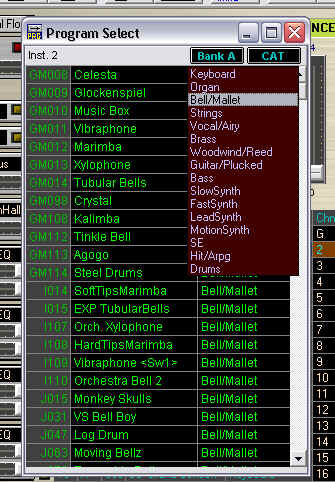
To select a different patch for the selected track, click on the Program name.

You can assign the Programs for the selected track either by using the list displaying Programs in banks or by a Program categories.
KEYBOARD AND VELOCITY ZONES
To adjust keyboard lower and upper zone use computer mouse to drag zone limits:
