button
  .
. SNAP SHOTS
A powerful editing feature, Snap Shots, takes a current picture of the parameters of your work. Each new change is recorded independently of the previous Snaps so allows for a cumulative record of program edits. It allows for unlimited undo's and comparisons of edited work. This feature is available when in Program Mode (Play and Edit.)
Snap Shots is a powerful additional editing tool when used in conjunction with Sound Editor's Librarian and Program Phantom Banks.
There are three ways to take a Snap Shot of the current program.
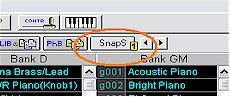
1) From the Toolbar click the
button .
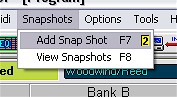
2) From the Menu select Snapshots and then "Add Snap Shot F7"  .
.
3) Strike F7 on the key board.
You should hear a beep to confirm a snap shot was taken no matter the method used.
To view the Snap Shots:
1) From the Menu select Snapshots and then "View Snap Shot F8".
2) Strike F8 on the key board.
The Snap Shots are recorded with the most recent changes at the top of the
window  .
.
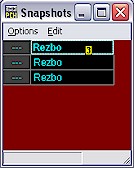
By clicking once on the name bar the parameters associated with the placement are loaded ready for auditioning or editing.
When finished with the editing the selected Snap Shot can be copied using the
 option in the
menu
option in the
menu  .
.
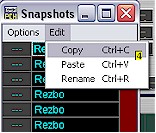
These parameters can then be pasted into the Program Library, a Program Bank or Program Phantom Banks for future use as desired.
By double clicking on the entry in the Snap Shot window the snap shot in question can be renamed.
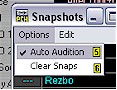
Using the  button in the Menu two more functions are available.
1) The Snap Shots can be cleared entirely from the window  and
and
2) Toggling between being able to automatically audition the Snap Shots as
selected or keeping the last (or original program) loaded for auditioning only
is accomplished though the  button in the Menu.