
Any questions or comments, please e-

Developed by SOUNDTOWER INC.
© 2014 Young Chang Co., Ltd.
Kurzweil, Artis and It’s the sound are trademarks of Young Chang Co., Ltd.
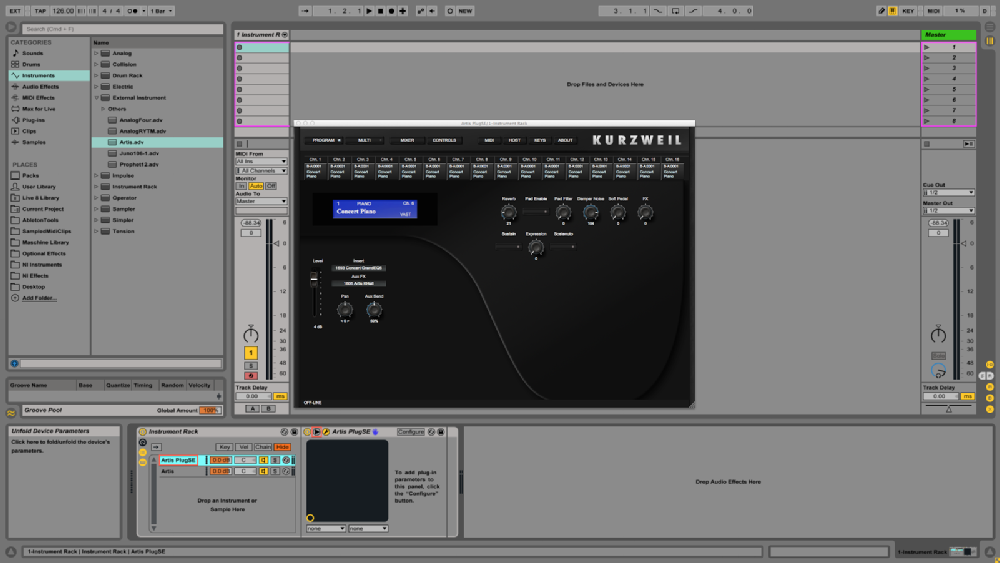
Step 5: Select Artis PlugSE chain list and click to “Unfold Device Parameters” .
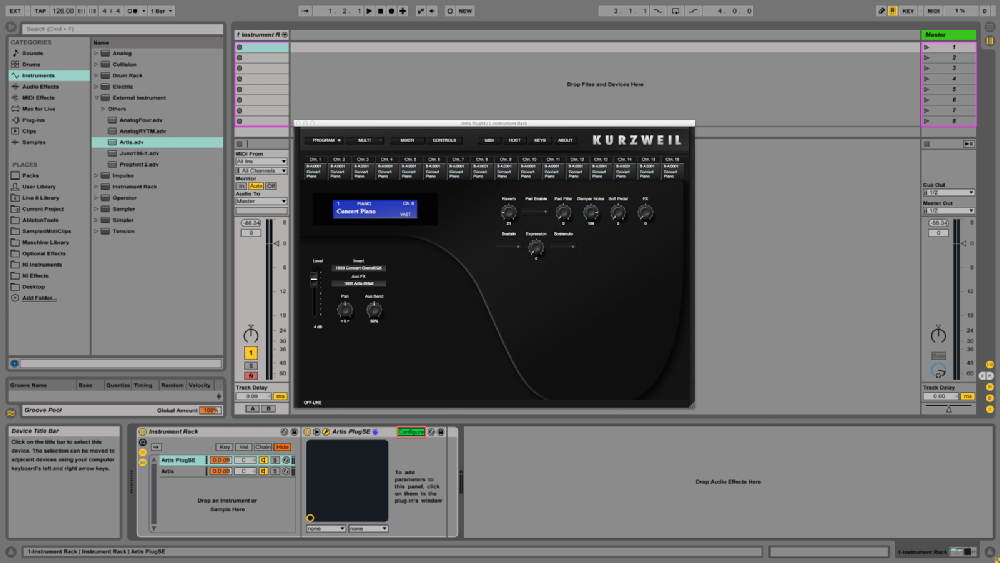
Step 6: Click Configure to move into “Configure Mode” to add parameters from the PlugSE.
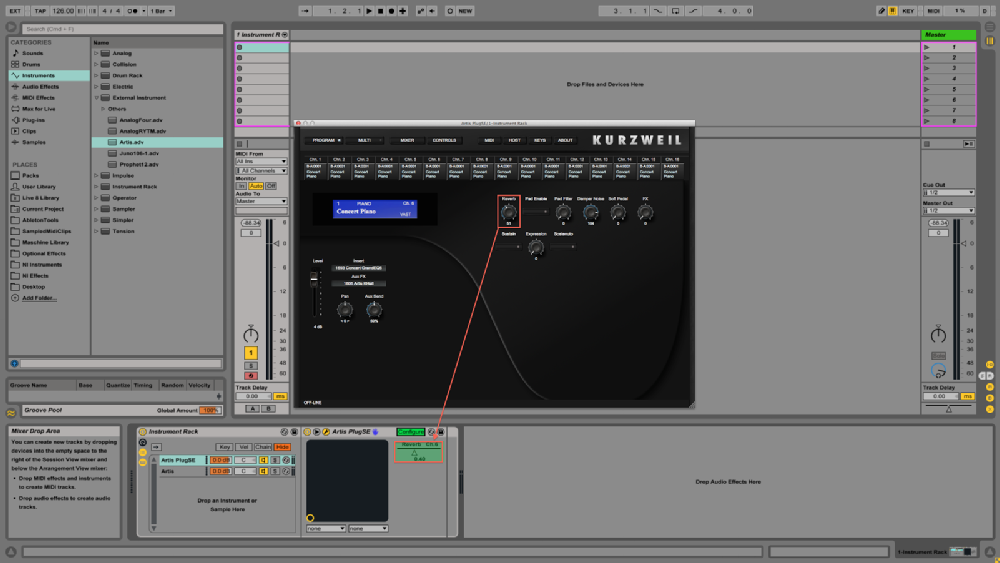
Step 7: Click and toggle parameter in the PlugSE to add it to “Configure” .
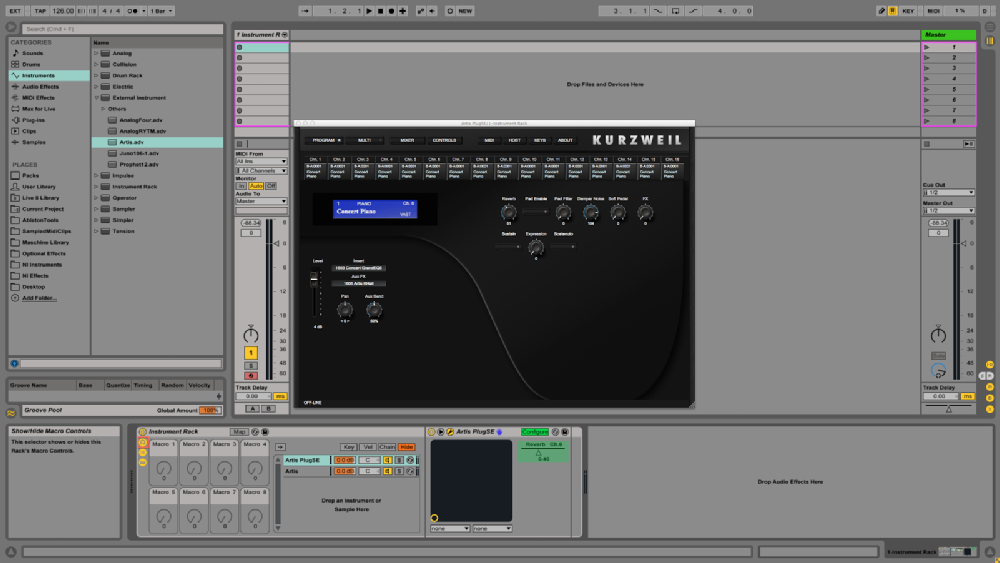
Step 8: Click “Show/Hide Macro Controls” to reveal eight “Macro Controls”.
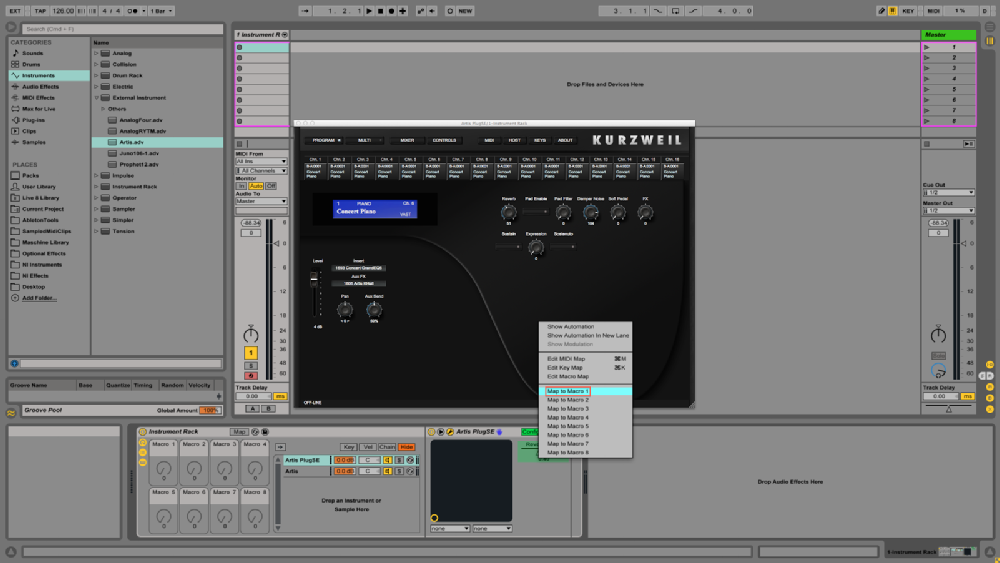
Step 9: Right click configured parameter to assign to a “Macro Control”.
Step 10: Toggle assigned “Macro Control” in “Instrument Rack” to control configured parameter .
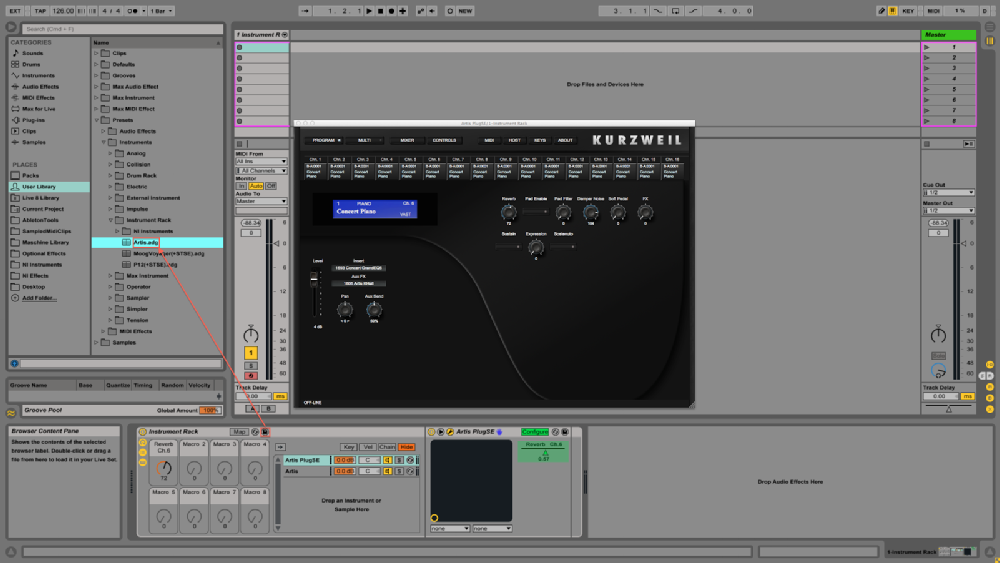
Step 11: Select “Save Preset” in the “Instrument Rack” title bar to save this configuration for future use.
For more information on Ableton Live’s Instruments Racks please consult the Live 9 manual at the following link:
https://www.ableton.com/en/manual/welcome-
Credits:
Justin James
Ableton Certified Trainer
Creating an External Instrument Rack
for Artis PlugSE in Ableton Live 9
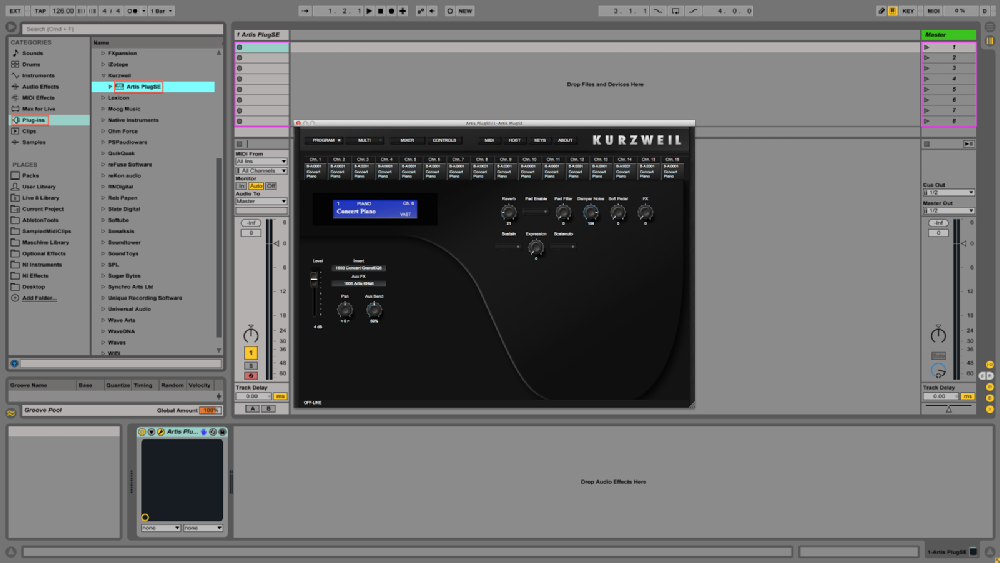
Step 1: Select the VST/AU Artis PlugSE from Ableton Live’s Plug-
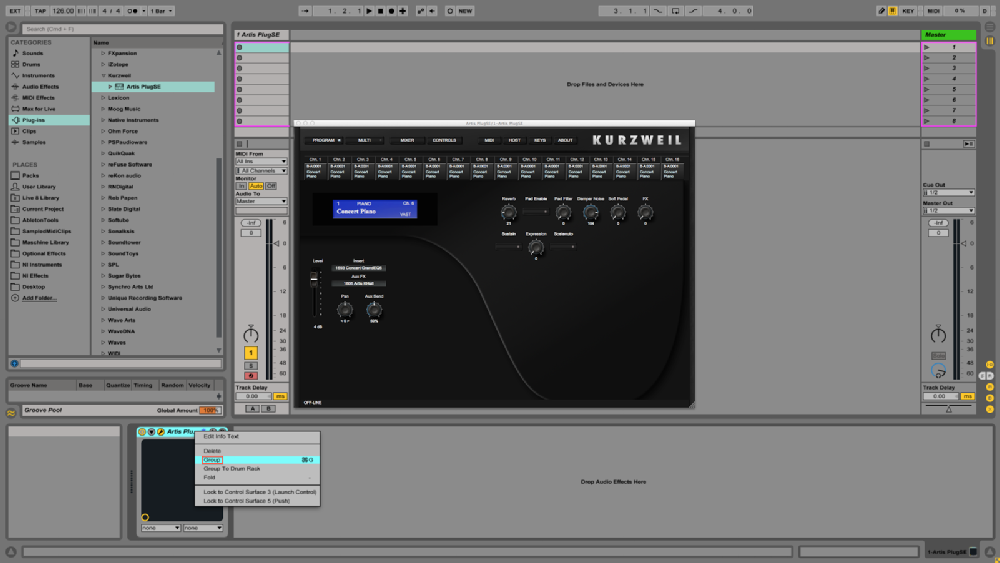
Step 2: Right click on “Device Title Bar” and select “Group”.
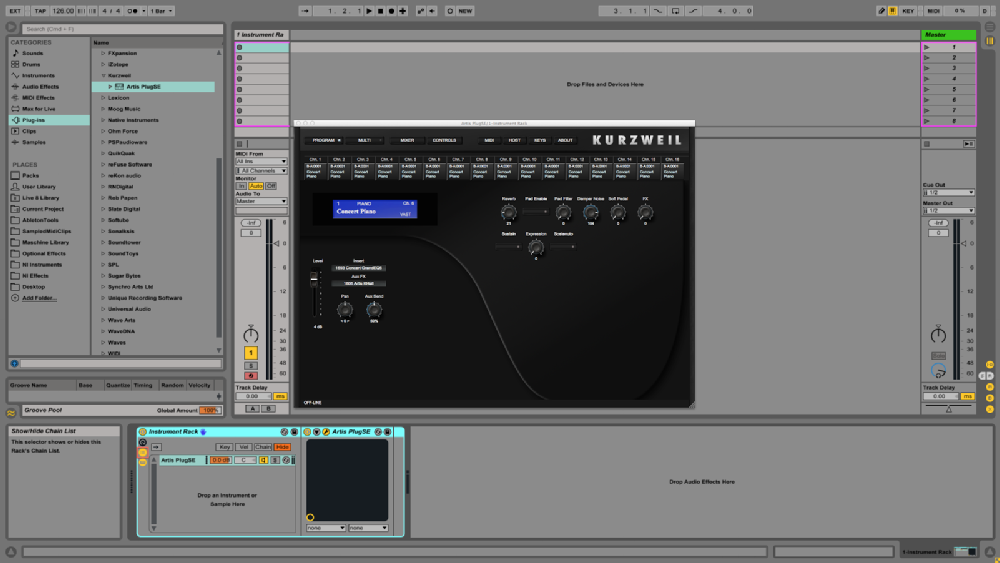
Step 3: Click “Show/Hide Chain List”.
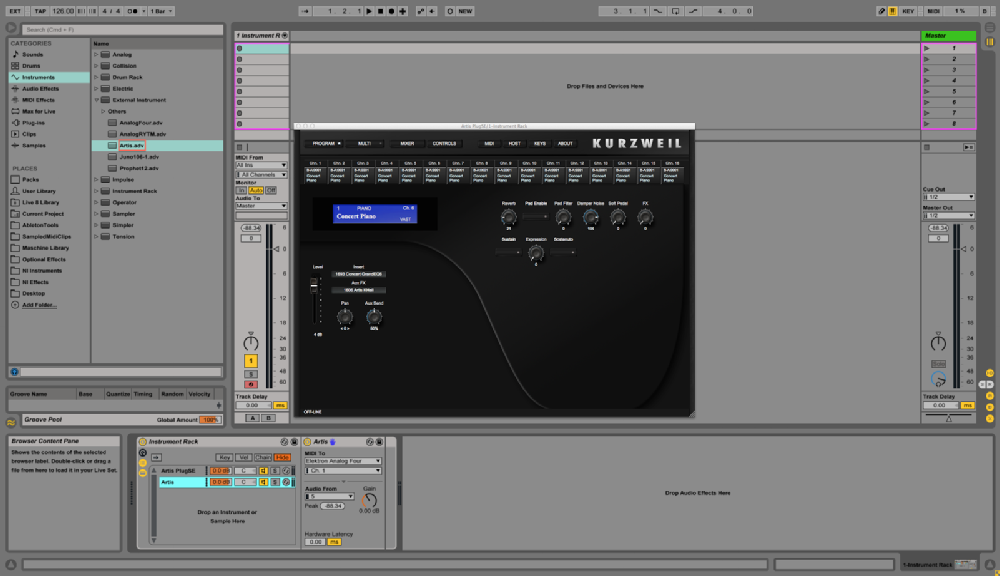
Step 4: Select the specific “External Instrument” from Ableton Live’s Plug-