

PROPHET X PlugSE™ instructions



MIDI Setup

Select MIDI iN and MIDI OUT ports Prophet X is physically connected to.
The status text should display: Prophet X: ON-
For the PlugSE to communicate with the Prophet, the Global SysEx (system exclusive) settings should be set as follow:
-
-
The PlugSE controls more than a thousand Prophet X Voice and Sequencer parameters and is using NRPN commands that are received and transmitted. To enable NRPN controllers set:
-
-
-

GLOBAL Settings
Once the MIDI communication is established, you can display all GLOBAL Prophet X settings:

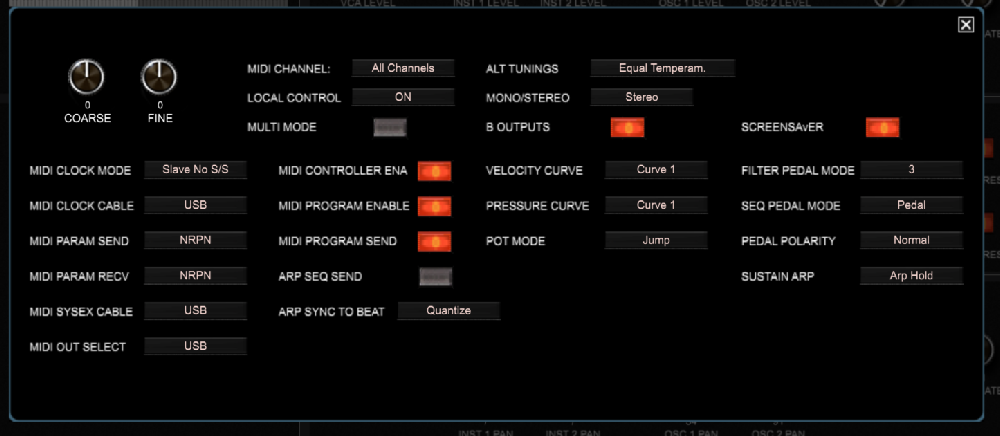
You can access and change all Global settings from here, however you should not attempt to change the few affecting MIDI communication like MIDI_SYSEX_CABLE, MIDI_OUT_SELECT, MIDI_PARAM and MIDI_CONTROLLER_ENA because you may loose the communication. If this happens, you will have to change back these settings manually on the Prophet X and then reconnect.
All other settings you can safely change from this panel. All changes made here are
not automatically saved -

Prophet X Banks

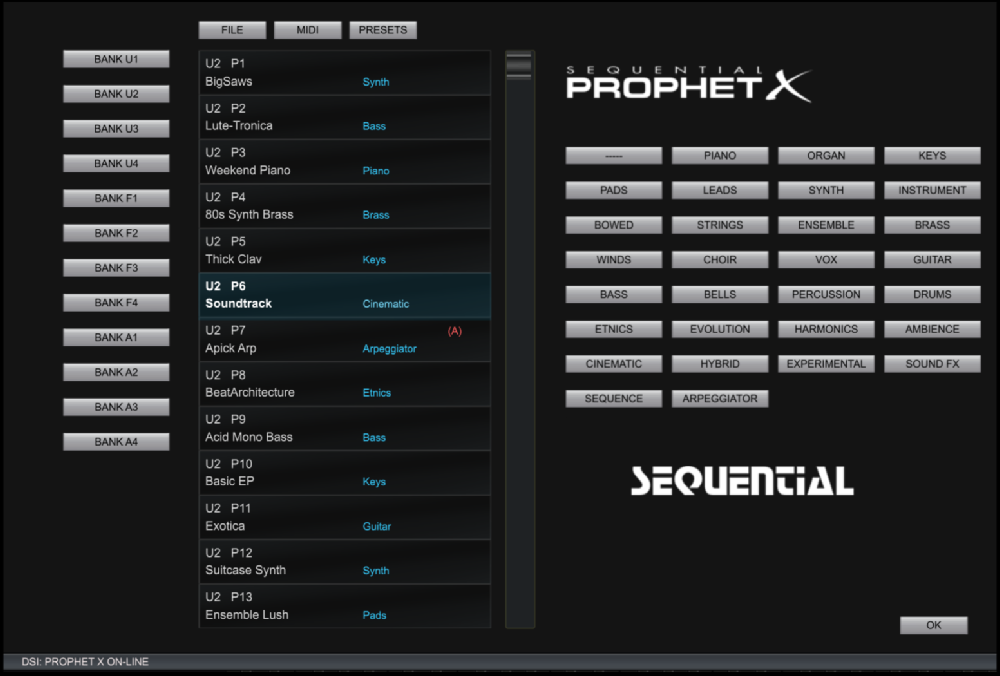
Using the bank panel you can access and select all programs in the Prophet X USER,
FACTORY and ADD-
On the left of the Bank Panel there are BANK buttons that bring up a content of a selected bank. On the right side there are CATEGORY buttons that filter all USER programs according to a selected category.
Double-
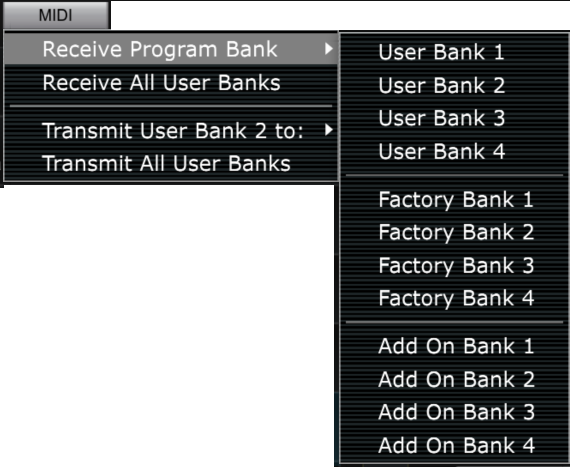
You can import Program banks saved in files by clicking on the FILE button.
Supported formats are:-
-
-
Bank files are loaded to the currently selected bank. If you select different bank destination, click on a different bank button to select another current bank.
For a convenience, if you like to revert or reload the original factory programs you can use the PRESET button. Again, like with the bank files, selected factory banks will be loaded to the currently selected bank.

Preset Manager / Librarian
Preset Manager and Librarian can be accessed from the File Menu or by click in on
the top-
Librarian Mode provides an easy access to Prophet X librarian files where Prophet programs are organized and saved according to their assigned sound category. To switch to Librarian Mode click on the LIBRARY button. There are about category 30 buttons under each the number of programs in that particular category is displayed.
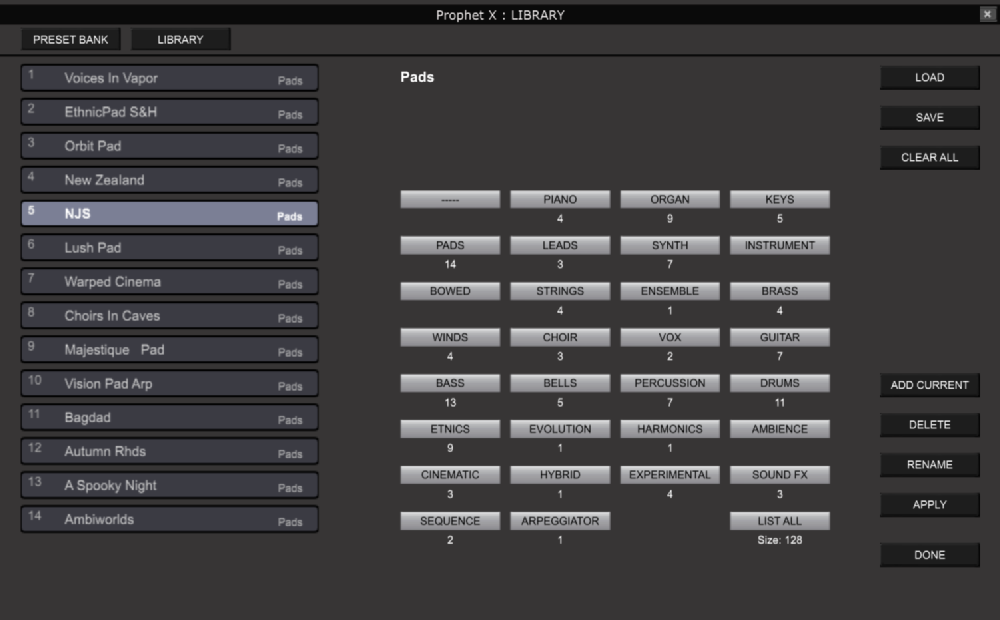
Library Mode Functions
LOAD -
-
-
-
You can also load programs from Prophet X USER, FACTORY and ADD-
SAVE -
CLEAR ALL -
ADD CURRENT-
RENAME -
DELETE -
APPLY -
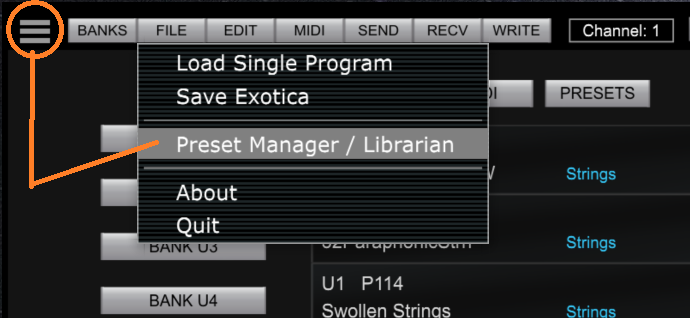
The Preset Manager window has two sections:


Preset Bank Mode manages the preset bank that used the host. It is exactly the same list of presets that the VST/AU host displays for preset selection on a track.
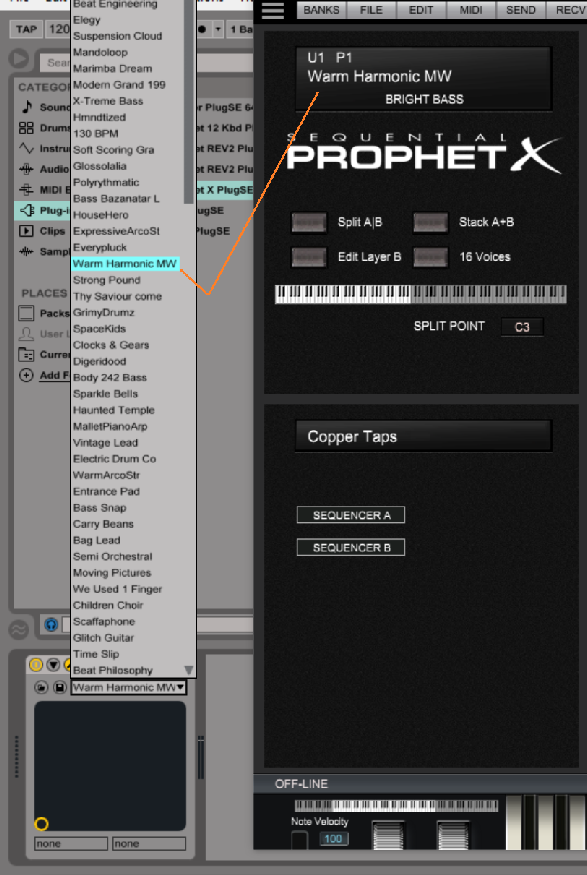
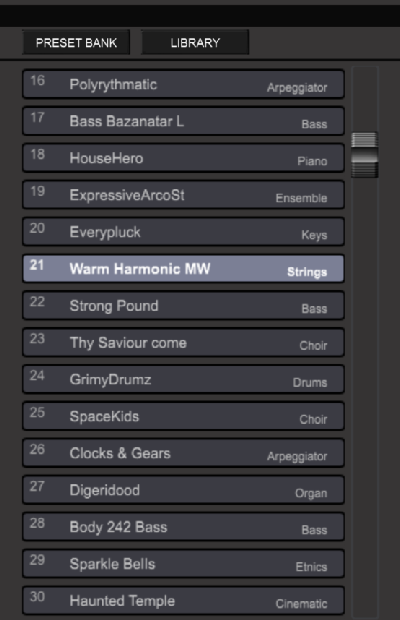
Unlike the Bank Manager, the Preset Manager or Preset List does not select physical
programs from the Prophet X internal banks. Each VST or AU plug-
The PlugSE’s preset bank comes preloaded with programs from the Prophet X Factory Bank 1 and therefor may look similar to Prophet X internal bank.
When you select programs in the Bank Manager, you are selecting programs in Prophet X internal banks using Bank/Program MIDI commands.
Selected programs are loaded from the internal banks to be played.
When you select select presets using the Preset Manager or Preset List then selected preset programs are send to the Prophet X to be played. Preset programs loaded in that way temporary replace programs in Prophet’s so called Edit Buffer.
The Preset Program Bank data is saved within the VST/AU project and it is loaded bank when you open saved project.
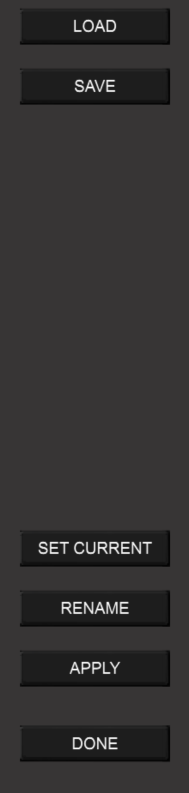
Preset Manager Functions
LOAD -
SAVE -
SET CURRENT-
RENAME -
APPLY -

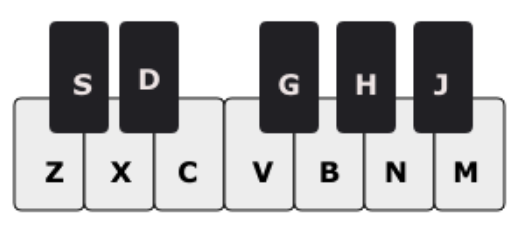
Computer shortcut keys:


MODULATIONS
CONTROLS
Octave -
Note Velocity -
INSTRUMENTS


OSCILLATORS
AMP and FILTER
AUX ENVELOPES
EFFECTS
ARP and SEQUENCER
LFO
Please note that the PlugSE window has to be in–focus in order for computer key strokes to work.
Computer Keys Note Play assignment:


Arp B Off / On
Poly Sequencer Off / On

Arp A Off / On
Any questions or comments, please e-

Copyright © 2021 Soundtower Inc.
Sequential, Prophet X and their respective logos are trademarks of Sequential LLC