.
To main page

PROPHET'08 SOUND EDITOR Help page
(PROPHET'08 SOUND EDITOR Help Page in PDF format)
SoundTower's sound editor/librarian software, specifically designed for PROPHET'08
Congratulations
and thank you for downloading/purchasing our Prophet ’08 SoundEditor for the
Dave Smith Instruments (DSI) Prophet ‘08! This Prophet ’08 SoundEditor is
designed to be the ultimate tool for organizing and creating presets for your
Prophet ’08. Through a
Patches
can be added to the program library in user-named categories for creating custom
preset banks – a terrific feature for musicians looking to organize programs
for easy retrieval later! In addition, a genetics function is available to
create new presets simply by morphing or mutating two presets together into a
whole new bank. The software allows for each of the Layers A and B to be edited
singly or in combined mode. Lastly, a hardware OS update function is available
to simplify updating the Prophet ’08 firmware.
This
manual, both a user guide and handy reference, is designed to get you up and
running quickly.
We
hope you enjoy using Prophet ’08 SoundEditor for your Prophet ‘08!
-
The Software Development Team
Software
Development: SoundTower Software,
User
Guide Development: Derek Prowse
Support
for this product is available at: www.soundtower.com/prophet/
No
special software installation is required. SoundEditor is a stand-alone program
designed to run on Windows 95, 98, 2000, ME, XP; Min Pentium 133.
The
SoundEditor application requires:
·
15MB Hard
Drive space
·
256 MB RAM (min.)
·
1024 x 768 minimum
screen resolution.
·
A
Updates
are available at: www.davesmithinstruments.com.
The Prophet ’08 already has the correct firmware. A wheeled, two–button
mouse is recommended for additional control of the program.
To
get the most out of the Prophet ’08 SoundEditor program you should first be
familiar with the operation of your Prophet ’08 instrument The Prophet ’08
instrument offers an abundance of programmable features, and the
accompanying Operation Manual is the key resource for a complete explanation of
the features and workings of the instrument.
Although
this software program can be an invaluable resource to aid in understanding your
Prophet ’08, it is not a substitute for reading and understanding the
Operation Manual.
This
User Guide will walk you through the steps to setup the SoundEditor with your
Prophet ’08 instrument. The STARTING UP and GETTING CONNECTED sections should
be followed first to get the hardware properly connected and running with the
SoundEditor software. From there you can freely explore SoundEditor, edit and
audition sounds, create new ones and have some fun!
The
Prophet ’08 is a deep and complex instrument with many programming options.
With this in mind, SoundEditor has been designed to be as simple and easy to use
as possible while retaining all of the functional control needed to adjust every
single Prophet ’08 parameter.
After
installing Prophet ’08 and launching the application for the first time by
double clicking on the program icon:
 .
.
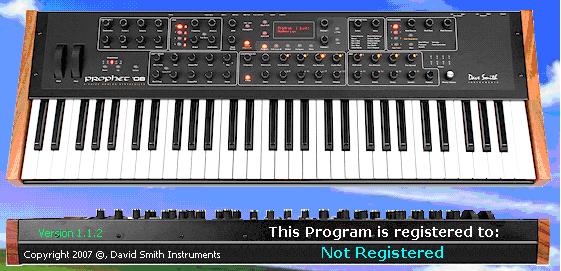
You
will initially be shown a splash screen with version number and the name of
registered owner. In the image shown below this is version 1.1.2 and the program
is currently an unregistered copy:
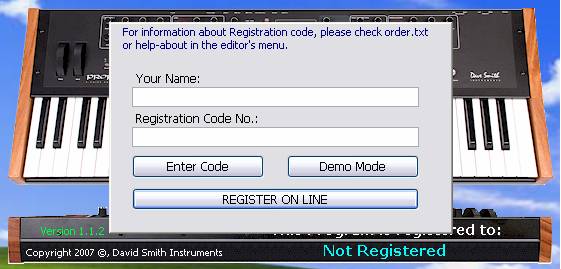
The
first window you will see upon startup will be the following message window
overlaying the splash screen:
|
Note: Registration is free for owners. To request the
registration code visit: http://www.davesmithinstruments.com
and follow links. |
Selecting
DEMO will put the program in demo mode, limiting file and SysEx
operations, but still allowing you to check out the program.
The
unregistered program lets you freely edit all of the Prophet ’08s preset
parameters and use most of the Editor's functions with the following
limitations:
When
you re-run the program, you’ll need to select demo mode again. This will
continue until the program has a valid registration. There is no limit to the
number of times the program can be run in demo mode.
To
register the software, select REGISTER ON LINE. The program will launch
your default web browser and connect you to the DSI site, where you can
purchase/register your copy of Prophet ’08 SoundEditor.
|
Note: You
will need an active Internet connection in order to register the program. |
If
you have a valid registration code, enter this information in the appropriate
fields and select ENTER CODE you will be presented with a small thank you
message box.
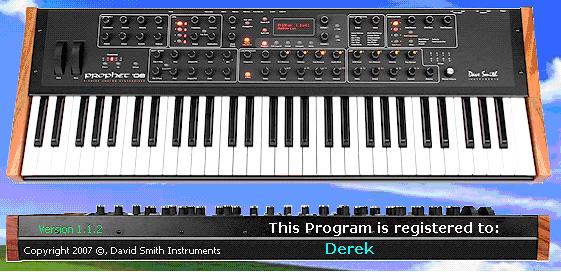
Registered
users will see their name displayed on the program splash screen.
In
order for the Prophet ’08 SoundEditor software to communicate with the Prophet
’08, the hardware must be connected to both the MIDI In and MIDI Out connections
of your computer's
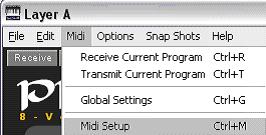
To open MIDI Setup, click
on
In MIDI Setup, select both
MIDI In and MIDI Out ports where Prophet ‘08 is connected. If
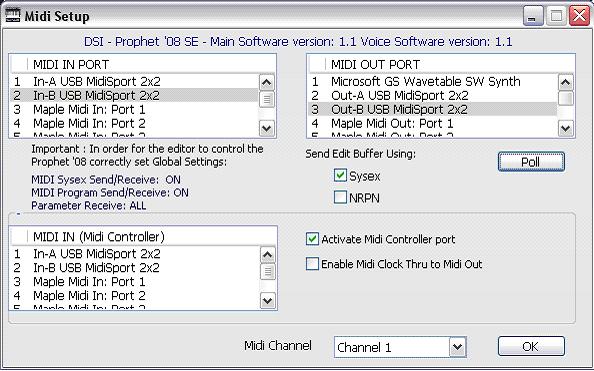
You
will need to select the MIDI I/O ports where your Prophet ’08 is connected.
MIDI
IN combo box selects the midi
interface port to which your Prophet ’08’s Midi Out is connected. This
interface processes midi data sent to Prophet ’08 Sound Editor from the
Prophet ’08.
MIDI
IN recognizes and filters out incoming midi data in two ways:
1)
The SysEx dump byte size must match expected byte count for the message type
2)
The SysEx dump message signature must be set for the Prophet ’08 (the byte
that specifies the kind of SysEx message) If either of these two conditions is
not met, Prophet ’08 Sound Editor will ignore the invalid message and the data
will not be processed.
MIDI
OUT combo box selects the midi
interface port to which your Prophet ’08’s Midi In is connected. All data
sent from Prophet ’08 Sound Editor (parameters, commands, continuous
controllers, and notes played by mouse piano or assigned computer keys) goes to
this port.
Poll
button looks for and activates the
midi ports if available.
Note:
To reset (jump start) the connection between your midi interface and Prophet
’08 Sound Editor click Poll. This should reset the drivers, empty buffer
contents, and reset the interface.
After
making your configuration selections, click the POLL PROPHET ’08 button.
If
Click
the OK button to store the settings and close the dialog box. You are now
ready to explore Prophet ’08 SoundEditor!
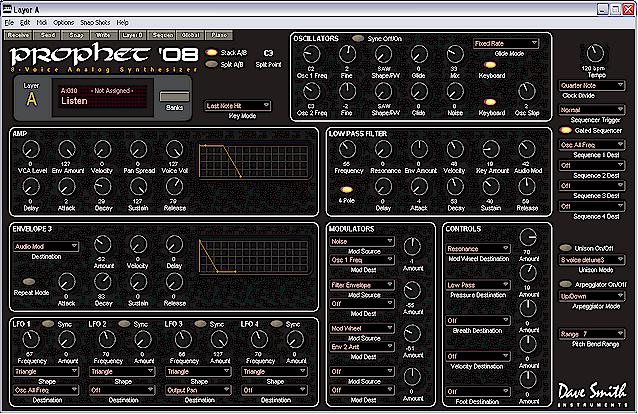
When
you launch SoundEditor you will see the window below.
We
will be referring to this as the Main window throughout this manual.
The
Main window contains menus, a toolbar and, initially, the Layer A parameter
editing control panel:
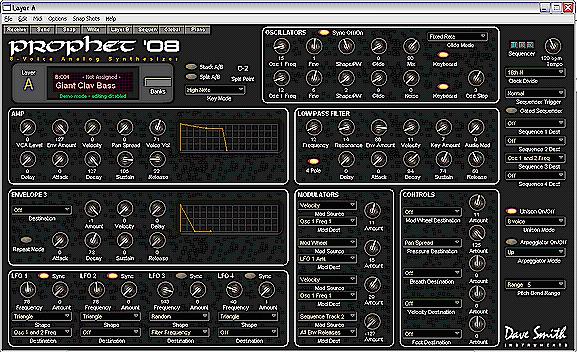
|
Note: The first time you launch SoundEditor, the two
program banks, though not initially displayed, are filled with the Prophet
’08 factory sounds banks. The content of the program banks, including
all edits and changes, are stored when you quit SoundEditor. They will
reappear when SoundEditor is launched again. |
Here’s
a quick tour of the menus in the Main window:
The
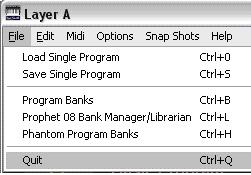
File menu contains commands to load and save Prophet ’08 data, load Factory
Presets and access the Prophet ’08 Bank Manager and Phantom Program Banks
windows.
|
|
|
|
|
The
Edit menu contains commands for accessing Controls, Sequencer, copying,
pasting, renaming, writing and initializing programs. You
have the capability to Copy, Paste and Initializing the currently active
Layer as well. Renaming the currently active program can be done through
this menu. |
The
MIDI menu provides access to the MIDI Setup and Global Settings windows, as well
as transfer commands of all Prophet ’08 data (transmit/receive).
|
|
|
The
Options menu contains the commands for switching between Prophet ’08 Layer A
and Layer B, as well as accessing the Program Genetics and V-Piano windows. This
is also where you would select off-line editing.
|
|
The
Snapshots menu contains just two commands for the Snapshots window, Add and
View.

The
purpose of Snapshots is to allow you to quickly capture “Snapshots” of all
parameters currently set in an edited program, giving you multiple points of
‘undo’ and allowing you to check your editing at various stages. See
Snapshots, Section 13.
Prophet
’08 Help command will automatically access the SoundTower Prophet ’08 help
webpage when selected. An active Internet connection will be required to access
Prophet ’08 Help.
 +
+
The Prophet 08 OS Update
feature allows for OS update from provided files or from files saved to HD. This
is explained in section xxx of this guide.
If
you are using a two-button mouse, you’ll find that right-clicking in various
lists and menus in some windows will bring up a contextual menu of useful
functions:
|
|
When in
Program Banks Right-clicking on program number or assigned name results in
the contextual menu shown. This menu allows you to easily Copy, Paste,
Rename, Save, Load, and Initialize programs. These commands are duplicated
in the menus, but are placed here for convenience. |
|
Similarly,
when in Program Banks, Right-clicking on program Category column results
in the contextual menu shown to the right. This menu allows you to assign
a category to your program. It should be noted that these Categories are
only accessible through the SoundEditor and not the Prophet ‘08. The
Categories are stored in the Prophet ‘08’s memory for future recall. |
|
You’ve
already seen the two program bank lists that the Program Bank window offers.
These lists, as well as program lists in other SoundEditor windows, can be
navigated using the list scroll bars, the scrollable mouse wheel, or the
keyboard.
The
following keys can be used to navigate SoundEditor’s scrollable lists:
The
Toolbar contains buttons for frequently used functions. A description of each
button follows:

The
Receive button receives the current program from the Prophet ’08,
allowing you to refresh after making changes. This button resynchronizes
SoundEditor with the Prophet ’08 if you have been editing a program offline
using the Prophet ’08 controls.
The
Send button sends the current edited SoundEditor program to the Prophet
’08, allowing you to refresh after making edits. This button resynchronizes
the Prophet ’08 with SoundEditor if you have been editing a program offline
using SoundEditor.
These
buttons control the Prophet ’08 Sequencer and Snapshots functions:
The
Snap button  copies
the current program to the Snapshots window. This button duplicates the action
of selecting ‘Add Snapshot’ from the Snapshots menu (above).
copies
the current program to the Snapshots window. This button duplicates the action
of selecting ‘Add Snapshot’ from the Snapshots menu (above).
The
Start/Stop Sequencer button is below the Snap button on the left.
This button duplicates the action of pressing the Prophet ’08 Sequence
Start/Stop button.
The
Sequencer Reset button is on the right. This button duplicates the action
of pressing the Reset button on the Prophet ’08. It resets the sequence
currently playing. It also acts as an emergency
|
|
Popup
labels identifying the Start/Stop Sequencer and Sequencer Reset buttons
are displayed when the cursor is placed on them. |
To
the right of the Snap button is a
The
Write button brings up the Write Program window, allowing you to write
the current program to the Prophet ’08 at the location you specify. The Write
button duplicates the action of selecting ‘Write’ from the Editor’s
Edit menu.
The
Layer B (Layer A when active in Layer B) button brings up the Layer B (or
Layer A) Settings window.
The
Sequen (Sequencer) button opens the
sequencer control window A or B corresponding to the Layer editor window
currently active. Full control of all 4 sequencers is accomplished from this
window.
The
Global button duplicates the action of selecting ‘Global Settings’
from the
The
Piano button brings up the V-Piano (Virtual Piano) window. The Piano button
duplicates the action of selecting ‘V-Piano’ from the Options menu.
To
the right of the Piano button is a group of three smaller buttons and a
SoundEditor
gives you the ability to name your own programs or change existing program names
that then can be stored and recalled in the Prophet ’08. Here’s how:
In
the Program Banks window, activated by clicking
 ,
select the program you wish to rename, right-click the mouse and select Rename:
,
select the program you wish to rename, right-click the mouse and select Rename:
|
|
Here
we’ve right clicked on
Program A008 – Soft Triangles - and selected the ‘Rename’ function
from the contextual menu. Click
into the text field and make the desired name changes.
When done, press enter. The new name will be stored automatically at
location A008 and the Prophet ’08 will be updated. |
|
|
Another
option for ease of changing the name of the current program being edited
is to click on the main program assignment panel which brings up the
rename window immediately. |
|
Note:
There is a 16-character limit on program names. Names may include upper
and lower case characters as well as numbers and most punctuation marks. |
You
can also change the program name using the Write button in the toolbar.
Select
the program you wish to change in Program Banks menu then click the Write button
in the toolbar. This brings up the Write Program window:

Here
you can change the name or enter a new name in the ‘New Name’ field. When
done, clicking the OK button will save the new name to the existing
(default) location.
Write
P also gives you the option of saving
the program to another location if desired. Select the new bank using the
Destination bank pull-down menu (shown), and scroll to the desired program
location. Clicking OK will save the program to this new location.

Receiving
and transmitting functions are located in the
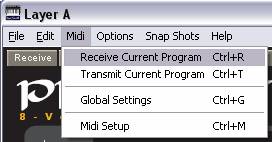
or
limit the data to any selected Program Bank or Single Program.
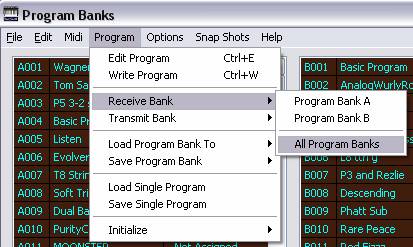
A
transfer window will open at this point.
If
your

|
Note:
When a single bank is transmitted, this bank replaces the corresponding
bank in the Prophet ’08. |
Loading
and saving functions are located in the File and Program menus in the Main
window. You can load or save all Prophet ’08 data at once, or limit the data
to a selected Program Bank or Single Program.

Note:
SoundEditor also has features for loading/saving Sequences, Phantom (virtual)
Program Banks and Library files.
Refer to
those sections elsewhere in the User Guide for details.
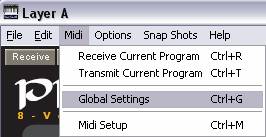
The
SoundEditor’s Global Settings window is displayed by clicking the Global button
in the toolbar

or
by selecting “Global Settings” from the
|
|
The
data is automatically polled from the Prophet ’08 but not if SoundEditor
is set to “OFF-LINE EDITING”. |
The
Global Settings window displays the Prophet ’08 global settings including, but
not restricted to, transposition control, tuning, clock,
The Global Setting window
allows control of:
See image below for layout
of described controls.

A
unique feature of the Prophet ’08 is the Layer concept. Each
Program has two layers, A and B. Each layer can contain a completely different
patch. The layers are typically used to create stacked and split Programs,
though you can also switch quickly between the layers using the LAYER A/B
button. (Please refer to the Prophet’08 User Guide for full information on
this feature.)
The
Editor windows for Layer A or Layer B are brought forward by toggling the Layer A and Layer B
buttons. When Layer A editing window is active the Layer button will have
‘Layer B’ as caption and in the converse when you are actively editing Layer
B the Layer Button will have 'Layer A’ as caption. (See images below):

We
will deal with the combined Layer A/Layer B Mode in section 17.
For
the Layer editing window you have access to every Prophet ’08
programming parameters, including sequences. The Editor’s real-time controls
allow you to tweak, test and audition the sound of your presets right from your
PC. Edits are automatically sent.
Custom
knob controls are used in the Editor window to display the functional equivalent
of the Prophet ’08 knobs. Adjusting any on-screen control transmits that
control change to the Prophet ’08, instantly updating the sound.
(See image below)

|
Note:
In addition to the on-screen controls updating the Prophet ’08,
adjusting the Prophet ’08 controls will update the Editor display. This
is because |
The
Editor window has several types of controls for program editing. Each is
discussed in more detail in the following sections.
Clicking
on a button toggles it ‘ON’ or ‘OFF’. When ON, the button has the
appearance of an LED that is lit. When OFF, the button appears dimmed. In this
example, the Stack A/B button is ON and the Split A/B is off:
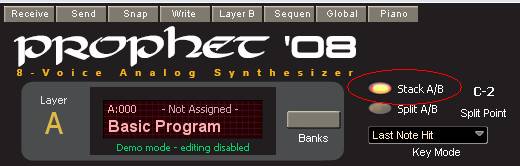
Move
a knob by clicking and dragging cursor in a rotational manner will change the
parameter value. You can get finer
control by placing the mouse cursor in/near the knob and moving the mouse wheel
(clicking is unnecessary). This will increase or decrease the parameter value by
1 for each mouse wheel increment or decrement. (You can also use the computers
up/down arrow keys to increment or decrement the values.)
Click
to select a parameter menu. Clicking on the label produces a drop-down menu that
will display all possible options for the particular parameter.
Clicking on a selection in the drop-down will select that item and close
the menu:

Clicking
in a Source or Destination field brings up a movable menu of Source or
Destination parameters:
|
|
In
this example, clicking in the Editor’s Layer
A Modulation first Source field brings up the Source menu, listing all
possible modulation sources. Here we’re selecting ‘Sequence Track 4’
from the available list. To select no source, choose the ‘Off’
selection at the top of the Source menu. The
Source menu will remain open until you make a single click selection. |
|
Clicking
in the Editor’s Modulation Destination field brings up the Destination
menu, listing all of the possible
modulation destinations. To
select no destination, choose the ‘Off’ selection at the top. |
Making
a new selection updates the source or destination display fields immediately,
and the chosen selection is transmitted to the Prophet ’08.
Like
the Source menu, the Destination menu will remain open only until you single
click on a selection.
The
Editor provides additional windows to control program envelopes, waveforms and
sequencing. Accessing and using these components are covered in the following
sections. The Sequencer and Banks windows are sufficiently full featured as to
deserve their own dedicated sections.
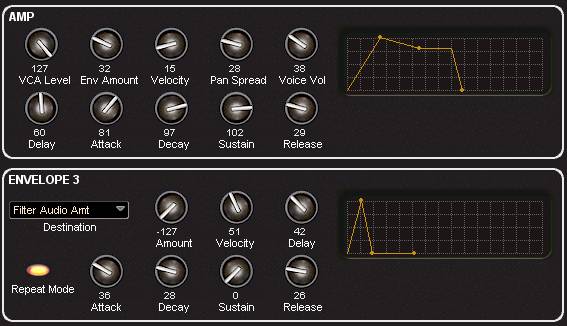
SoundEditor
provides two panels dedicated windows to adjust program envelopes. The
adjustments are viewed graphically as the knob value changes are reflected by
direct envelope changes in the display.
|
|
Click
on and adjust the knobs to change the envelope forms. |
In
addition to the ADSR control sliders, the Filter Envelope Window contains slider
controls to adjust the Filter Frequency, Envelope Amount and Keyboard Amount.
|
|
The
AMP Envelope window contains the familiar ADSR, VCR and Amount controls as
well as controls for Level and Velocity. |
|
|
The
Envelope 3 window also contains the ADSR, Amount controls, and a Velocity
control like the AMP envelope, but adds a programmable destination field. Clicking
in this field brings up the Destination Menu, where you can select the
destination of Envelope 3. |
When
you’re finished adjusting envelope parameters, click the DONE button to
return to the Editor.
All
four LFO control are grouped at the bottom left of the main Layer window. The
organization of each of the LFO is the same:
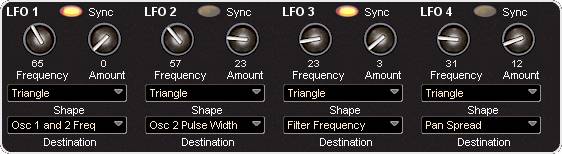
Shape
and destination are selected through drop down lists accessed by clicking on
label or arrow. The Frequency and Amount values are modified by knobs controls.
Each
LFO can be synced individually by clicking on/off the LEDs.
Osc 1 and Osc 2 are
controlled by controls in the Oscillators sub-panel found to the top right of
the main screen.
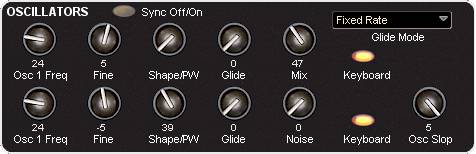
As
can be noted in image above all Prophet ’08 Osc 1 and 2 parameters can be
modified in real time through this panel including:
Note
that Glide Mode is changed through contextual menu not knob. Click on the list
box to open the list.
Low Pass Filter parameters
are controlled by controls in the Low Pass Filter sub-panel found to the middle
right of the main screen.
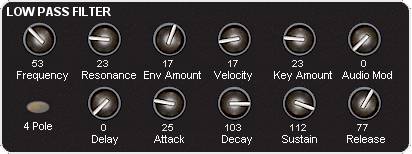
As
can be noted in image above all Prophet ’08 Low Pass parameters can be
modified in real time through this panel including:
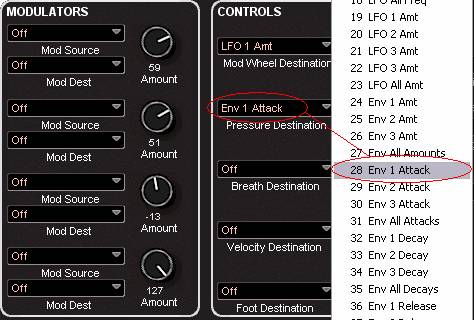
Modulators
and Controls are simply mapped by clicking on the combobox down arrows and
selecting from the list. Above ’28 Env 1 Attack’ was selected as Pressure
Destination on Controls panel.
Levels
are controlled by use of the knobs to the right of the Source and Destination
labels. You may make the changes by holding a left click down and moving the
mouse or by mousing over and using your mouse scroll wheel if so equipped.
Here
are descriptions of the menus in the Editor window:
The
File menu contains commands to access the Load
and Save Single Programs, Program Banks,
Librarian, Phantom Program Banks and Exit commands.

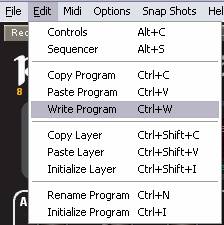
The
Edit menu contains commands for copying, pasting, initializing and writing
programs.
The
Copy Program command copies all parameters of the current defined program
and the Paste command pastes the copied parameters into the current
program
Copy,
Paste and initialize layer deals with the currently active layer of the program
being edited.
|
|
The
Write command brings up the Write Program window, allowing you to
change the name and select the location where The
program will be saved. Initialize
resets all parameters to default values. |

The Options menu gives
access to many controls and functions unique to
All
program edits you make in the Editor are automatically applied to the edit
buffer of the Prophet ’08, but they must be saved to make them permanent. To
save an edited program, use the Editor’s Write option. This
is accessed by clicking on the write button on tool bar (in red circle)

Selecting
Write produces the Write Program dialog box:

Select
a destination bank, location and click OK to store the program. You can
also change the program name here (limited to 16 characters). Click Cancel to
cancel the operation.
From
the Sequencer window all four of the Prophet ’08 sequences can be graphically
controlled.
The
Sequencer Window is selected from the Editor’s Program menu (shortcut: F6),

or
by clicking on Tool Bar button (below)

A
quick adjustment option is offered through the controls on the right side of the
editor screen.
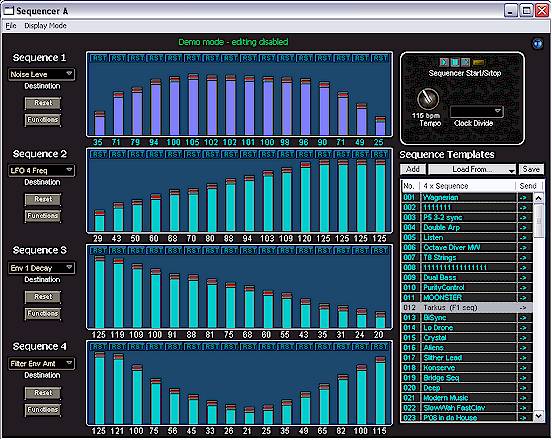
The
Sequencer window contains parameters to program the four Prophet ’08
sequences, controls to adjust the tempo and clock divide functions, and buttons
to start/stop and reset the sequencer. Additionally, a Sequence Templates
function allows you to copy sequences from other programs and apply them to any
one or all four sequences:
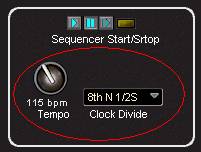
A
closer look of the upper right corner of the Sequencer Window reveals the
buttons for Sequencer Start/Stop and Reset (see section 9.1 below), knob control
to adjust the Tempo and a drop down list box to control Clock Divider parameters
(see section 9.6 below).
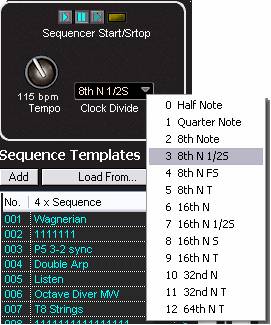
The
sequencer buttons provide a convenient way to start/stop and reset the Prophet
’08’s sequencer remotely. Like the sequence buttons in the main window,
placing the cursor over the Sequencer buttons causes a pop-up label to appear.

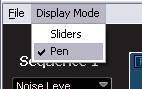
The
Display Mode control affects the way the cursor works when adjusting each
of the 16 sequence control bars. There are two modes, Sliders and Pen:
|
|
Sliders
are just that, individual
sliders. Each bar is adjusted individually by clicking and dragging on the
‘fader’. Slider mode is the best choice for sequences that will
control oscillator pitch, or anytime precision adjustment is required. Pen
makes the cursor function like
a magnet so as you drag the cursor over the graphic bars the height or
each bar and so the shape of the sequence is adjusted as if drawing a line
or curve. |
With
the mouse button held down, placing the cursor over a fader causes the fader to
follow the cursor position. Pen mode allows you to draw envelope-like sequences
by dragging the cursor across the control bars. Pen mode is not as precise as
slider mode, but is a good choice for sequences that are programmed to provide
‘evolving’ changes over time.
Once
set, the Display Mode control setting remains ‘as is’ until you
change it again.
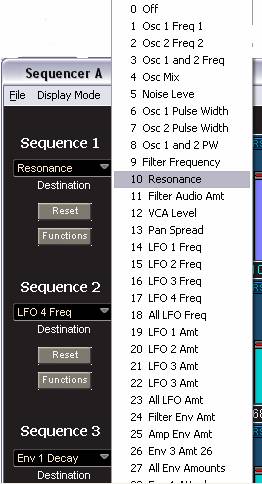
Just
below each of the four Sequence labels is a display field that that expands into
a list box when clicked showing the sequence’s destination (shown as OSC ALL
in the figure below).
|
|
You
can change the destination by clicking in this display field, which will
bring up a destination menu as shown. In
the example given here, Sequence 1 is set to control Resonance. Each
of the Sequences (1 through 4) must be selected individually. You
need to set each Destination for each of the four sequences separately.
Simply click in the destination display field for each sequence, and
select the new destination. |
|
|
|
|
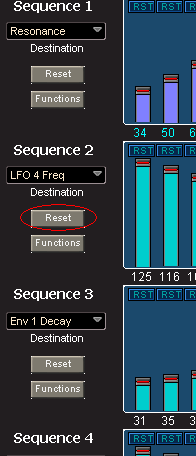
The
Reset button resets all 16 sequencer control bars to zero values.
This is a quick way to zero the parameters: |
|
Just
below the Reset button is the Function button. Selecting the Function
button opens a window that gives you access to additional sequencer
functions, including adjusting the length of each sequence, options to create
pitched sequences from preloaded sequence data, and functions to alter the
sequence data.
Also
notice that we’ve selected Major from the Chords column, creating a sequence
of pitch values based on a major chord. This sequence will be simultaneously
applied to all four Prophet ’08 oscillators because ‘OSC ALL’ is the
selected destination:
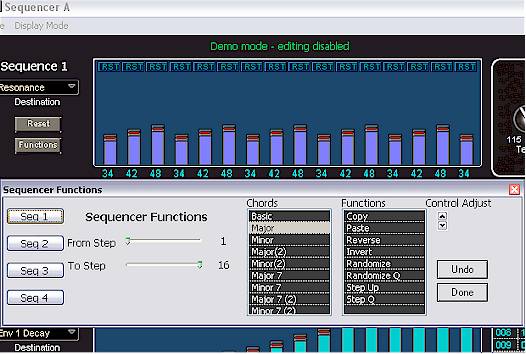
Preloaded
chord data is available for major and minor chords, and several major and minor
sevenths to get you started. Refer to Appendix B for a list of sequencer note
values and Appendix C for details on SoundEditor chord structures.
To
the right of the Chords column is a Functions column containing commands to
copy, paste and modify the selected sequence. These functions include:
The
Undo button offers multiple levels of undo. You can undo any chord or
function selection back to the point at which you started.
The
Done button closes the Function drop-down window.
Note:
the Sequence selection buttons on the left side isolate the sequence to apply
these settings to. As each sequence is selected the colour of the bars of the
selected sequence change from the light blue-green to mauve to help remind which
sequence is actively being edited.
At
the top right of the Sequencer Window are the Tempo and Clock Divide function
controls. To adjust, simply click and rotate control for Tempo and click on the
label for activation of contextual menu for clock divide.
Tempo
is continually adjustable from 30 to 250 BPM.
Clock
Divide is adjustable in increments from Half Note through 64th N T.
Sequence
Templates are a way to copy and paste sequences from other programs into your
current sequence, as well as loading and saving sequences to your computer.
|
|
The
Add button adds the current sequence to the list. The
Load From…… button produces a dropdown menu that allows you to
load sequences from bank A or B or from a File saved to your HD. There is
also a selection here to clear the list. Selecting Load File… brings
up an Open File window that allows you to navigate to where the file is
located. |
The
window will display all the files on your computer, but only those files having
an ‘.p_s’ extension are valid template files that can be loaded. All other
file types will be ignored.
Use
the Add button to save the current
sequence as a template. You can display all sequencer settings from all programs
in Program Banks. To select and apply sequencer settings from a template, use
your mouse to click on the small arrow in the right most column in sequencer
Template list. The Sequencer Template settings will be applied to the current
program and sent to the Prophet ’08’s program buffer for auditioning.
Click on step value labels
to toggle values: 0 -> RST -> OFF -> 0
The
Save button allows you to save all sequences that appear in the list of
programs. Clicking the Save button brings up the Save Sequence Templates
window:

Enter
a name for the file and select a location. Click SAVE when done. Sequence
templates are saved with a ‘.p_s’ extension.
|
The layout of the
Sequencer window corresponds to the Prophet ’08’s 16x4 sequencer. You
can adjust step parameter values using sliders. Reset buttons set all 16
sequence step parameters to “0” and if clicked again to “OFF” |
To
streamline functionality of this software the Prophet ‘08 user banks are set
in their own powerful sub-window easily accessed from the main GUI, from main
menu or short cut key. (Ctrl+B). The Banks window is, in essence, a smaller main
control window that can be left open and use in conjunction with the main
editing window. If the program is to be heavily edited the Banks window can be
minimize or closed until needed again.
The
Prophet ’08 program banks are accessed in several ways. In main menu select
File -> Program Banks (Ctrl+B).

As
well the SoundEditor has a Bank button set just to the right of the current
program name panel. Click this once and the Bank window will be activated.

The
program banks display both Bank A and Bank B for editing.

There
are two options to rename a program from the program bank Edit menu select
Rename (Ctrl+N) and open the rename box. (see below)
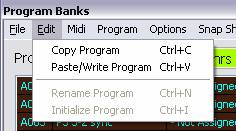
The
other option is to left click select a program in one of the bank windows and
then click the Edit button to set this program to be the active program in main
edit window. This will also cause the program name to be placed in the current
program name label (in the example below A001 ‘Wagnerian’ was select and set
by Edit.
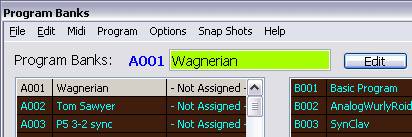
A
single click on the program name in green label brings up a small rename box:
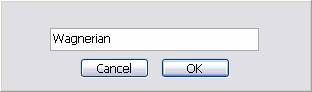
Type
the new name, press ENTER, and the Prophet ’08 will automatically be updated.

To
copy selected program, click right mouse button to show pop-up menu and select
“Copy Program”. You can use “Copy Program” from the “Edit” menu. If
you have edited/changed any parameters, they will be included in the copied
program.
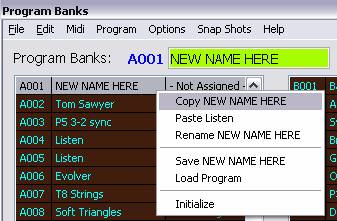
To
paste the copied program to a different location in any of the banks, select the
destination location, click the right mouse button to show pop-up menu and
select “Paste Program”.

Note:
The Paste function from the pop-up menu described above is different than
Pasting from the “Edit” menu:
Use
the right mouse button pop-up menu to save the selected single program to a file
or place it into a bank.
Here’s
a description of the menus in the Program Banks window:
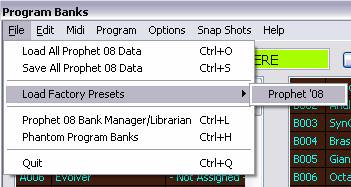
The
File menu contains commands to Load and Save phantom banks, and Close
the window.
|
|
The
Load All Prophet 08 Data command loads a saved bank file into the
selected bank. Valid Bank files contain the ‘.p08’ suffix, and are the
only file type that will load here. All other data files will be
ignored. |
The
Save All Prophet 08 Data command allows you to save the currently
selected phantom bank. Selecting it brings up a save window where the
Bank file can be named and saved to the location of your choice:

The
Load Factory Presets command has a fly-out menu of program banks to
choose from. The current OS has only the one choice.
You
can also open the Librarian and/or Phantom Program Banks from this menu as well.
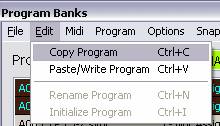
The
Edit menu contains commands to Copy, Paste, and Rename, Initialize
and Clear a program bank.
|
|
The
Copy Program and Paste/Write Program commands operate on the
selected program, and are used to copy and paste programs between Banks. The
Rename command opens a rename window; the selected program name can
be changed or replaced. The
Initialize command initializes
the selected program, returning all parameters to their default values. |
The
|
|
Selecting
any of the |

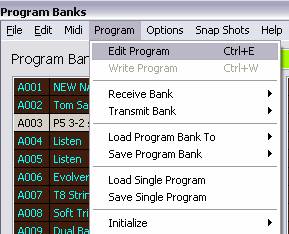
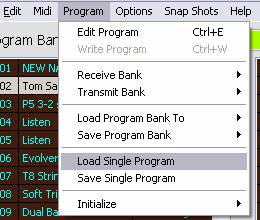
The program menu selection
is very important to the functioning of Banks management. It contains the core
list of functions for loading and sending/writing programs to and from the
Prophet ’08.
|
|
When you have
selected a program of interested that is to be edited the first option of
the Program menu, Edit Program Ctrl+E, sends the entire program to the
SoundEditor’s buffer and is represented on the editing surface by
updating all parameter groups. When satisfied with
the edit the Write Program option (Ctrl+W) can be selected to send the
modified program to be auditioned on the hardware. |
|
Receive and Transmit
Bank will pull or send all of a selected Bank, or both banks, from or to
the Prophet ’08 hardware when selected. A small
receive/transmit window will be activated that always for adjustment to
pause intervals between individual program upload/download to account for
system data receive/send limitations in different setups. |
|
|
|
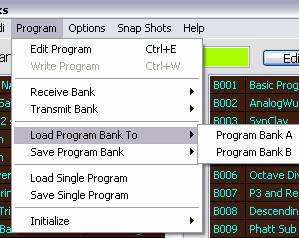
Load Program Bank To
and Save Program Bank will pull or
send all of a selected Bank from or to file on memory media when selected. Your OS system
dependent save/open dialogue window will guide you through this process. |
|
Load Single Program
and Save Single Program will open and load or save a selected program from
or to file on memory media when selected. Your OS system
dependent save/open dialogue window will guide you through this process. |
|

Selecting this option
resets all program parameters back to initial factory presets.
The
Prophet ’08 Bank Manager is accessed through the Main window by clicking on
the Bank button just to the right of the main program label. The Prophet ’08
Bank Manager’s Librarian lets you organize and store an unlimited number of
Prophet ’08 programs. You can also have as many Library files on your computer
as you wish. The Librarian provides 24 sound categories to organize your Prophet
’08 sounds and have them available for immediate use. For convenience, these
sound categories have already been defined, but all categories can easily be
renamed according to your needs.
A
view of the Prophet ’08 Bank Manager window is shown below. The User Program
Bank is shown on the left (1), Librarian sound categories are displayed in
the middle (2),
and a list of the programs contained in the current Librarian sound category is
on the right (3). Buttons for Bank Manager and Library functions are at the top.

A
detailed view of the buttons and checkboxes in the Prophet ’08 Bank Manager is
shown below.
When
Use Bank Data is unchecked (disabled), selecting a preset from the User
Program Bank switches the Prophet ’08 to the corresponding preset. This
guaranties synchronization between the hardware and SoundEditor. When Use
Bank Data is checked (enabled), the selected preset data from the User
Program Bank is sent to the Prophet ’08 edit buffer for editing and audition.
This feature helps to browse through presets in the User Program Bank without
the need for dumping the entire bank to the hardware.
|
Note:
When Use Bank Data is enabled, Tempo and Clock Divide data
is not sent with the program data. If a sequence is playing when you
select a new program, you will hear the new program’s sound, but it will
be played at the tempo of the original program. This can be used to
quickly audition new sounds/sequences at pre-determined tempos. |
Despite
its location in the window, the Auto Dump checkbox is part of the
Librarian. When the Auto Dump checkbox is checked (enabled), a selected
preset from the Librarian Program list is automatically sent to the Prophet
’08 edit buffer for editing/audition. When Auto Dump is unchecked
(disabled), no data is sent.
The
Add Current Program button copies the selected program in the User
Program Bank to the current Librarian category.
The
Librarian function contains 24 sound categories and a program list which display
the contents of each category:

The
selected sound category is indicated by boldface type and a triangle to the left
of the name.
|
Note: When the number
of presets exceeds what can be displayed in the list window, the program
will add a scroll bar to provide access to the complete list of presets. |
You
can change to a different category simply by clicking on the small arrow to the
left of the desired sound category name. For example, in the figure below we
selected the Strings category, which currently contains no presets:
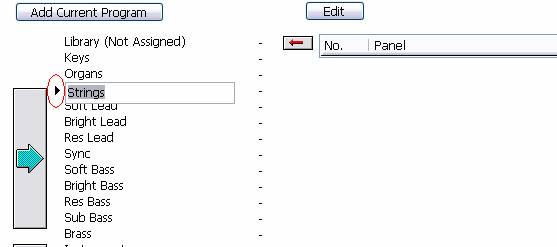
Navigating
the Librarian’s program listing is exactly like navigating the User Program
Bank listing, using either the mouse or the keyboard. Options for changing the
sort order of these programs is done in the same way as described for the Users
Program Bank list.
The
Librarian’s Add Current Program button adds the current preset from the
User Program Bank to the selected sound category. Note that new entries are
always added to the end of the list, so if you have a lot of presets in a
particular category, you may have to scroll down to see the new entry.
You
can import all 128 programs from the User Program Bank into the Library using
the Load From User Bank Data command in the Librarian menu
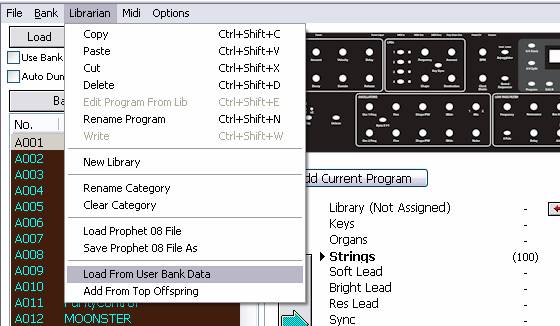
You
can also import the sounds from the Program Genetics Top Offspring bank using
the Add From Top Offspring command.
It’s
important to understand that when using the Load From User Bank Data or
Add
From Top Offspring commands, programs
will load into the currently
selected
Librarian category. Should you accidentally load a bank into the wrong category,
you can use the Librarian’s Clear Category command to delete the
bank,
but realize that doing so will clear ALL presets in that category, including
any
presets you intentionally placed there.
You
can use the Delete command to selectively delete programs in categories,
one
program at a time. Right click on library list box and select cut or delete.
Programs
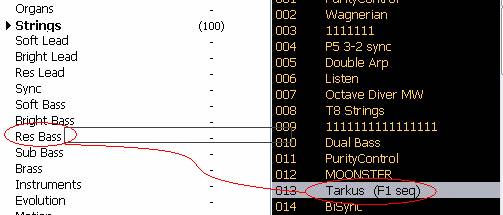
can be moved from one category to another by dragging them with the mouse. Here
we are dragging program 013 ‘Tarkus (F1 seq)’ into the Res Bass category:
And
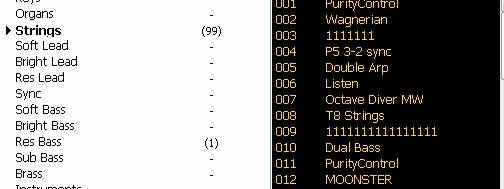
here is the result. Note that after the move the number of programs in the
Strings Library category is now 99 (down from 100 as seen in image above), and 1
program is now in the Res Bass category:
You
can also drag programs from the User Bank to the Library and from the Library to
the User Bank. When dragging from the Library to the User Bank, the Library
program will replace the currently selected program in the User Bank, and be
written to the Prophet ’08 at that program location.
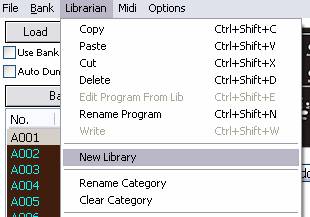
Found
under Librarian menu the New Library command allows you to create a new
Library.
After
selecting New Library, you’ll see a message dialog asking if you wish
to save the existing library:
Clicking
the OK button will present you with a ‘Save Program Library’ dialog
box that will allow you to name and save the current library to the location you
specify. Clicking the NO button will clear the existing library including
all 24 categories, leaving an empty library. Clicking the Cancel button
will cancel the operation and return you back to the library unchanged.
The
Load command allows you to load a library file into the program. Library
file names have the extension ‘.p_l’. When loading a library file, all file
types will be displayed, but only those with a ‘.p_l’’ extension will
load. All other files will be ignored.
The
Save command allows you to save the library file, displaying a dialog box
that will allow you to name and save the current library to the location you
specify.
The
Librarian menu
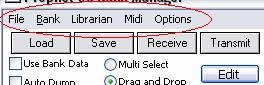
is
found at the top left corner of the Librarian window.
File
Menu contains links to the Load and Save Prophet ’08 Data, Load Factory
Presets, Program Banks, Phantom Program Banks and Quit options.

Bank
menu contains the command to handle Librarian edit operations, including Copy,
Paste, Rename, Initialize, Edit Program From Bank, New Bank, Load to A and
Save A options.
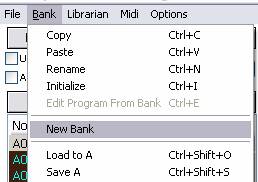
Librarian
menu contains the usual Copy, Paste, Cut, Delete
and Rename Program functions. In addition there are:

The

The
Program Genetics window is selected from the Options menu of the main page
(Morpher is a subset function of Genetics and will be discussed at the end of
this section):

Program
Genetics can also be accessed from the Bank Manager/Librarian Options menu
selection as well:

Genetics
allows you to quickly build new sounds from two existing ones in a similar
fashion to breeding. Parameters of each of the two sources (Parents) are
combined using four different functions to generate a new bank of presets
(Kids).
A
view of the Preset Genetics window is shown below. The two source banks (Parent
banks called Mommy and Daddy) are located in the upper left, along with buttons
for the four different genetics functions. The generated bank (Kids) and the Top
Offspring bank are located in the lower left. On the right are filters to
exclude selected parameters from the genetics function, and three buttons at the
top for editing functions and resetting excluded parameters.
Any
pair of programs can be used for the genetics functions (one program each from
mother and father). The result of applying the user-selected genetics functions
creates a child bank of 128 new programs, and any ‘keepers’ auditioned from
the child bank can then be moved into the Top Offspring bank.

The
four Program Genetics functions are selected by using the buttons at the top of
the window. Here’s what the four functions do:
|
Notes: Experimentation
by using vastly different parents and similar parents creates the most
interesting results. You can also ‘interbreed’ the child patches, too.
In addition, you can set filters to excluded parameters that will not take
a part in the generation of new offspring. Experiment and have fun! |
The
Auto Audition checkbox enables automatic transfer of the selected presets
from the mother, father, kids or top offspring banks to the Prophet ’08's edit
buffer. When the Auto Audition checkbox is unchecked (disabled), no data is
transmitted to the Prophet ’08.
Other
buttons at the top of the window include Edit, Write and Reset.
The
Edit button brings up the Editor window, permitting on-screen editing of
the selected preset from the Parents, Kids or Top Offspring banks. Note: The Auto
Audition button must be checked for the Editor to correctly display the
selected preset in the Genetics window.
The
Write button brings up the Write Program dialog box. The Write function
works on the currently selected program, which can be from the Mommy or Daddy
Bank, the Child Bank or the Top Offspring Bank:
The
Reset button resets all selections made under the ‘Exclude Preset
Parameters’ section. When the Reset button is clicked, all checked parameter
selections become unchecked.
Both
Parent banks use the programs from the ‘A’ bank by default, but any bank can
be loaded into either parent by clicking on the list box masthead and selecting
Bank A or B as shown below:

To
create a bank of sounds based on a Program Genetics function (Mix, Morph,
Mutate, or Random) you must select a pair of ‘seed’ programs, one each from
the Mommy bank and Daddy bank. Use the scroll bars to scroll through the Parent
bank lists and select the desired programs. If you have a mouse with a scroll
wheel you can quickly scroll through either bank list by placing the mouse
cursor onto the list and scrolling up/down.
With
a pair of programs chosen, selecting any one of the four Program Genetics
functions will create a bank of 128 programs in the Kids bank. Selecting the
Program Genetics function a second time will create a new bank of 128 programs,
replacing the previously generated Kids bank.
|
Notes: Program names
in the ‘Kids’ bank become scrambled or rearranged when you use the
Genetics functions. This is normal. |
If
Auto Audition is enabled, the newly generated programs can be auditioned
by selecting a program from the Kids bank. With Auto Audition enabled,
the program data is automatically sent to the Prophet ’08 edit buffer.
Programs can be auditioned using SoundEditor’s V-Piano function, or by using
the computer keyboard.
|
Note: Be sure to turn
down the volume before trying out “Kids” programs because the
resulting levels can be unpredictable! |
Programs
created in the Program Genetics window can be moved in several ways:
Selected
programs in the Kids bank are moved into the Top Offspring bank by clicking on
the thin copy bar that separates the banks.
Selected
programs can be dragged from either the Top Offspring or Kids bank directly into
any Librarian category in the Prophet ’08 Bank Manager. Programs can also be
dragged from either the Top Offspring or Kids bank directly into the User
Program Bank in the Prophet ’08 Bank Manager where they are automatically
written to the Prophet ’08 at the currently selected program location.
Program
Genetics has just one menu, shown below.
The
File menu contains commands to open Bank Manager/Librarian and Phantom Program
Banks.

The Morpher function is
accessed through the main menu Option selection:

The resulting window is a
reduced view of the Morpher:

This window contains a
slider that allows for real time Morphing (the same Morph algorithm as used in
the Program Genetics function) between any two programs from either or the same
bank. Checking the Live Scroll option sends each incremental blending of the two
programs being morphed to the editor buffer and window GUI as well it will be
auditioned so that you can hear the actual result as you scroll. Please keep
your speaker volume down using this function. There can be some very strange an
extreme results that have high gain characteristics.
The expanded view of the
Morpher window (found by clicking the More button) offers a few
editing/filtering options for the Morpher.
Options
include preserving certain parameter groups as presented in the original
programs (options for preservation are):
·
Base Sequencer
·
Freq/Tune
·
Base Mod Sources
·
Base Mod Destination
·
Base Analogue Oscillators
·
Base Controls
There is also the option
to Morph the Analog Oscillators only and to use Controller by number.

Program
Snapshots add extra functionality to quickly capture UNDO points or
“Snapshots” of edited programs. To add the current program to Snapshots
click on the Snap button on Layer Tool Bar (seen below)

Use
SnapShot menu option and select Add Snapshot

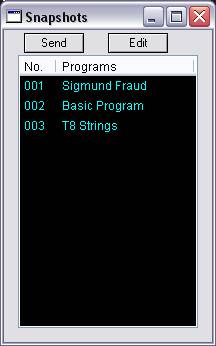
To
rename a program in Snapshot collection, double-click on the program name.

To
send the Snapshot to the Prophet ’08’s edit buffer, click the Send button as
seen above. As you build a list of snapshots you may want to go back to one of
interest and re-edit it or audition. This is simply done by clicking on one of
the SnapShot selections and clicking the Edit button. The parameter settings on
main window will automatically reset.
Snapshots
allows you to quickly capture “Snapshots” of edited programs, giving you
multiple points of ‘undo’ and allowing you to check your editing at various
stages. The Snapshots Window is accessed from the Snapshots menu in the Main
window.
The
Phantom Program Banks function allows you to add virtual banks of programs
(phantoms) to your Prophet ’08. Phantom Program Banks allows you to load up to
16 banks of programs into SoundEditor, and have any program in any bank
immediately available for auditioning. This means you can have as many as 2048
programs (16 x 128) at your disposal (2560 program when you include the four
Prophet ’08 instrument banks!).
Banks
of programs can be loaded from SoundEditor’s Program Banks (A and B), or from
the Top Offspring list in the Program Genetics window, or from any saved bank
files. Banks can also be assembled by pasting or dragging single programs to
this window.
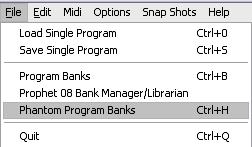
The
Phantom Program Banks window is selected from the File menu in the Main window
(shortcut: Ctrl-H):
|
Note:
You can expand the Phantom Program Bank window both horizontally and
vertically to accommodate long path names and long program lists. |
Phantom
Banks serve as a librarian for your Prophet ’08 programs. You can load 16
different Program Banks into Prophet ’08 Sound Edit at a time. The banks can
be loaded from the Prophet ’08’s Program Banks, from Genetics’ Top
Offspring or from saved Prophet ’08 Bank and SysEx Files. Loading functions
are located in the File menu.

By
double clicking on the Category column members a Category rename dialogue box
will be activated and you may re-label the Category the phantom programs belong
to. In the example below we double clicked on the S002 (the second of the
modified Rare Peace programs) and see that it is Not Assigned.
One
click on the – Not Assigned label will bring up the contextual menu filled
with the available categories. These are changed in Librarian.

The
Virtual Piano (V-Piano) provides a way to ‘play’ the Prophet ’08 remotely
using the mouse. V-Piano is selected from the Options menu in either the Main
window or the Editor window (shortcut: ctrl-P)
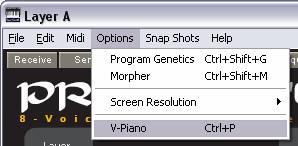
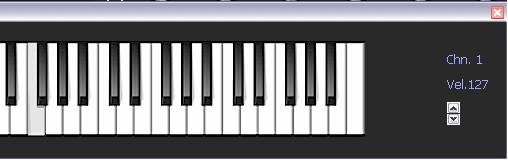
To
play, simply use the mouse to press keys on the V-Piano. When a key is pressed
with the mouse, the corresponding note will be displayed in Red on the bottom
left side of the keyboard:

The
vertical slider on the far right of the keyboard adjusts the velocity of notes
played from 0 to 127. The
You
can also play notes on the Prophet ’08 using your computer's keyboard. The
middle and bottom rows of computer keys act as a single octave of keys mapped
like a piano keyboard. You can use these keys to remotely play notes on the
Prophet ’08:
Mouse Piano and Computer
Key assignment are as follows:
Sliders adjust Midi Channel
change and velocity of notes played.
3-4 notes can be played at
the same time.
Octave Shifting:
Letters Q W E R T Y U I O P select the octave (transpose computer keys)
Note Velocity:
- and + decrease and increase note velocity
Key Notes:
X
=C
D =C#
C =D
F =D#
V =E
B =F
H =F#
N =G
J =G#
M =A
K = A#
, = B
. = C (one octave above "X" key)
All Notes Off - Space Bar key
Additional functions:
+ and - = change Note velocity +/- 5
* and / = change Play channel +/- 1
Visually this is roughly
represented by the following schematic of the keyboard:
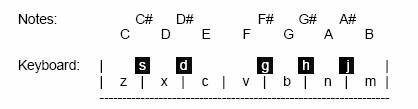
Hint:
You can “hang” a note by pressing down a “note” key and while it is
depressed, press “octave” key.
When computer keys are
played, a value of note played is displayed together with a midi channel and
velocity on main window’s status bar.
Each
key press generates a MIDI Note ON message corresponding to the note as
specified. When the key is released, a
|
Note: This feature works in all windows, allowing you to audition
sounds at any time. Note that the CAPS LOCK key must not be ON, as only
lower case letters send |
This
menu item simply opens a splash screen that gives the registered owner and
version details of the software.

The
Help On Line menu item opens your default web browser with a direct link to
SoundTower.com/prophet online help page. This help page is a replication of the
help file included with this software’s installer package for use in case the
original file is lost or for the user to get access to inclusions that may occur
from time to time.
|
IMPORTANT: Refer to the documentation
supplied with your OS update for full details on the update procedure BEFORE
updating the firmware
with SoundEditor. |
Begin
by confirming that

Selecting
this command will initiate the update.
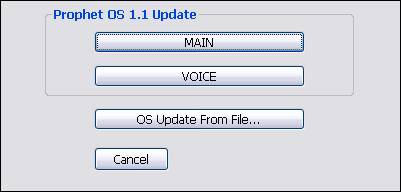
There
are two different methods to update the operating system.
The
first is broken down into a two part procedure involving update of MainOS and
then VoiceOS. Clicking
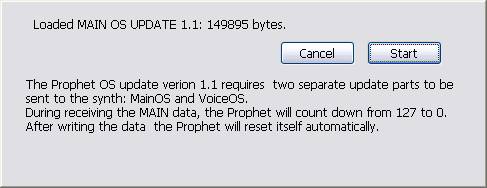
When
this part of the update is finished the Prophet’08 will close and then
restart.
Please
do not turn off your Prophet’08 during this procedure.
When
the software restarts, go back to the Help menu and open the OS update dialogue
again and click the VoiceOS update button. This will invoke the following
dialogue window:

Please
note that the software will close and then restart again automatically when
update is completed.
Please
do not turn off your Prophet’08 during this procedure.
Clicking
OS Udate From File will present you with a load window. You must navigate
to where the SysEx Update file is located that you downloaded from the DSI site
and select the file:

Clicking
the OPEN button will load the file into SoundEditor. You will be
presented with a dialog box.

Clicking
the START button will initiate the transfer of SysEx data to the Prophet
’08. You must NOT interrupt, turn off or other wise disrupt the update while
it is in progress as this may have sever consequences with regard to your
Prophet’08’s OS integrity that may require reinstallation of the OS.
Prophet’08
Stack and

In
the upper of the two images above the Stack function is engaged and the lower of
the images demonstrates the
The
Here
we clicked on the C3 key (grayed out above) and set the split point at this key.
The label changes it’s text to reflect the currently selected key.
Most
of the menus in the SoundEditor have key command shortcuts for frequently used
items on the menus. Many users find these key command shortcuts quicker and
easier then using the mouse for most operations.
File menu:
Ctrl + O
Load All Prophet ’08 Data
Ctrl + S
Save All Prophet ’08 Data
Ctrl + L
Prophet ’08 Bank Manager/Librarian
Ctrl + B
Program Banks
Ctrl + H
Phantom Program Banks
Ctrl + Q
Quit
Edit menu:
Alt + C
Controls
Alt + S
Sequencer
Ctrl + C
Copy Program
Ctrl + V
Paste Program
Ctrl + W
Write Program
Crtl + Shift +
C
Copy Layer
Ctrl + Shift +
V
Past Layer
Ctrl + I
Initialize Layer
Ctrl –
N
Rename Program
Ctrl –
I
Initialize Program
Ctrl + R
Receive Current Program
Ctrl + T
Transmit Current Program
Ctrl + G
Global Settings
Ctrl + M
Options menu:
Crtl + Shift +
G
Program Genetics
Crtl + Shift +
M
Morpher
Ctrl +
P
V-Piano
Snap Shots menu:
Crtl + A
Add Snapshot
Crtl + Shift +
A
View Snapshots
File menu:
Ctrl + O
Load All Prophet ’08 Data
Ctrl + S
Save All Prophet ’08 Data
Ctrl + B
Program Banks
Bank menu:
Ctrl + C
Copy
Ctrl + V
Paste
Ctrl + N
Rename
Ctrl +
I
Initialize Program
Ctrl + E
Edit Program From Bank
Crtl + Shift +
O
Load to BankB
Crtl + Shift +
S
Save BankB
Librarian:
Crtl + Shift + C
Copy
Crtl +
Shift + V
Paste
Crtl +
Shift + X
Cut
Crtl + Shift +
D
Delete
Crtl +
Shift + E
Edit Program From Lib
Crtl +
Shift + N
Rename Program
Crtl + R
Receive BankB
Crtl + T
Transmit BankB
Crtl + M
Crtl + G
Global Settings
Options menu:
Crtl + Shift +
G
Program Genetics
Crtl + P
V - Piano
File menu:
Ctrl + O
Load All Prophet ’08 Data
Ctrl + S
Save All Prophet ’08 Data
Ctrl + L
Prophet ’08 Bank Manager/Librarian
Ctrl + H
Phantom Program Banks
Ctrl + Q
Close
Edit menu:
Ctrl + C
Copy Program
Ctrl + V
Paste/Write Program
Ctrl + N
Rename Program
Crtl + R
Receive BankB
Crtl + T
Transmit BankB
Crtl + G
Global Settings
Crtl + M
Program menu:
Ctrl + E
Edit Program
Ctrl + W
Write Program
Options menu:
Ctrl + G
Program Genetics
Ctrl + P
V-Piano
Snap Shots menu:
Crtl + A
Add Snapshot
Crtl + Shift +
A
View Snapshots
File menu:
Ctr l+ L
Prophet’08 Bank Manager/Librarian
Ctr l+ ALt + option L Phantom
Program Banks
Ctr l+ W
Close
Here
is the complete list of file extensions used in the DSI Prophet’08
SoundEditor:
Save/Load
Prophet 08 Program Bank
.p_b
Save/Load All
Prophet 08 Data
.p08
Save/Load
Single Prophet 08 Program .p_p
Save/Load
Prophet 08 Main Settings
.p_m
Save/Load
Sequence Templates
.p_s
Program Library
.p_l, .p_b
OS Update from
File
.syx
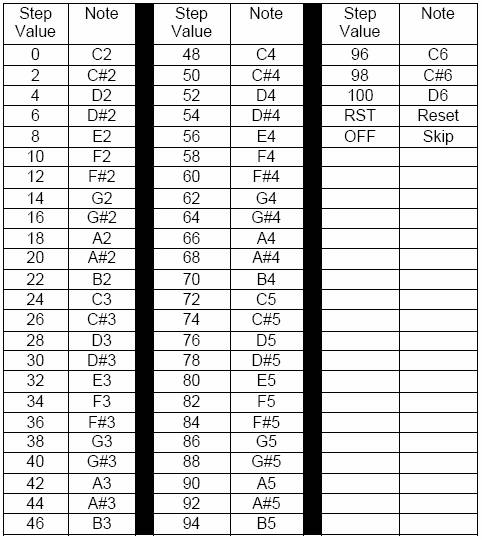
The
following chart of note values is provided to assist in adjusting sequence
pitches in SoundEditor. The step values shown produce musical half-steps and are
based on an oscillator pitch setting of C0 with no transposition:
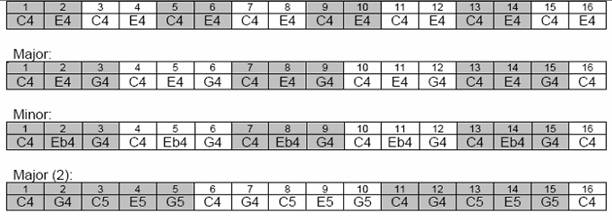
The
Function section in SoundEditor’s Sequencer window contains a number of preset
‘chords’ which are programmed as arpeggiated patterns of notes. These preset
chord patterns are shown here for your convenience. The patterns are based on a
starting step value of 48 (C4, although the step value is completely
programmable), and visually grouped to shown the chord played. All 16 steps are
shown:
Basic
(alternating major third):
.