SOUNDTOWER Sequential Prophet 6 Sound Editing Software
by Mark Vail

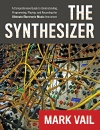
Music journalist, historian, teacher, and performer Mark Vail is the author of The Synthesizer: A Comprehensive Guide to Understanding, Programming, Playing, and Recording the Ultimate Electronic Music Instrument Published in 2014 by Oxford University Press:
Any questions or comments, please e-
Copyright © 2016 SOUNDTOWER INC.

SEQUENTIAL, Dave Smith Instruments, PROPHET 6 and their respective logos are trademarks of Dave Smith Instruments



Many of the synthesizers available from Dave Smith Instruments provide dedicated
knobs, switches, buttons, and more for controlling what the instrument is doing in
real time. However, there’s considerably more power inside DSI synths — including
the Prophet-
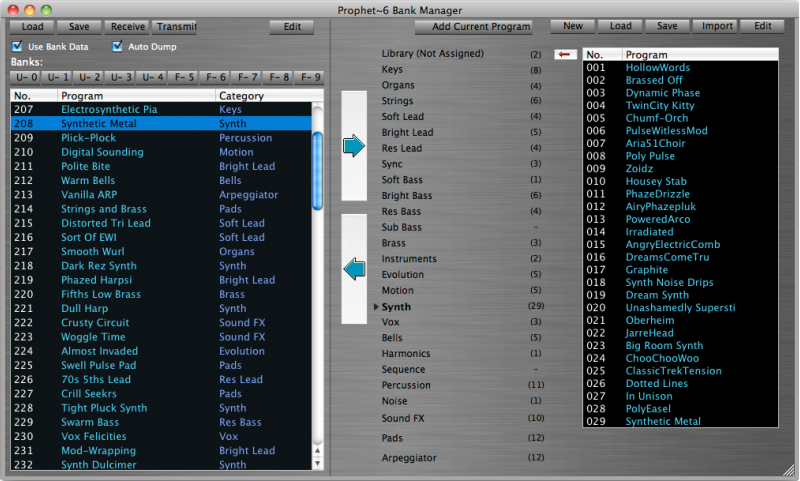
On SoundEditor’s Bank Manager page, you can drag individual or multiple patches from a list of them in computer memory to what actually resides in the P6. If you enable Auto Dump, a single patch will get loaded into the P6’s patch buffer so you can audition it without actually replacing another patch in the synth’s memory. There’s a bit of potential confusion concerning patch numbering because those in the synth begin at 000 and those in the computer start at 001. Likewise when transferring banks from the P6 into your computer, SoundEditor might ask if you want to download user bank 01 when it’s actually referring to bank 00.
Perhaps one of the SoundEditor’s simplest capabilities is allowing you to name P6 patches; the synth doesn’t have an alphanumeric display that shows patch names, so this capability helps to an extent. Knob positions and parameter setting also graphically appear on the computer screen when you select a new patch, information you can’t tell from merely looking at knobs on the P6’s front panel.
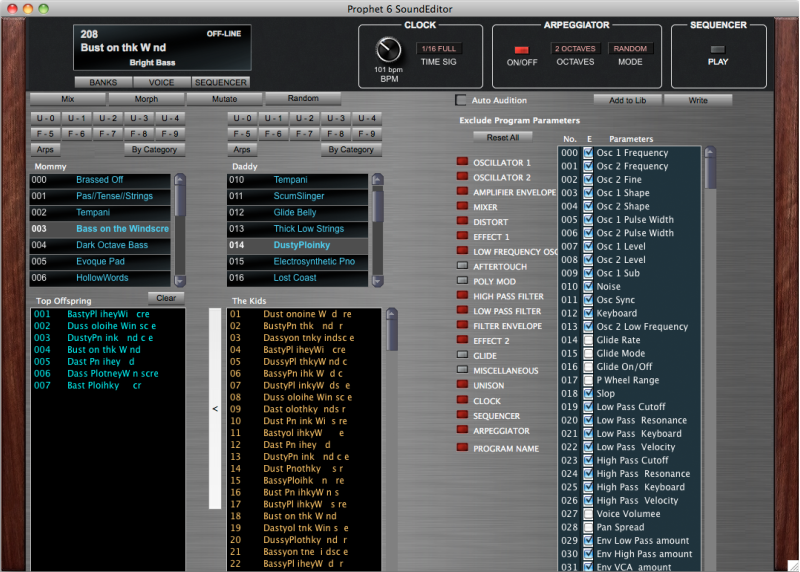
One place you’ll find outstanding SoundEditor magic is within its Sound Generators menu. Using the Program Genetics page, you can create an entire bank of patches using genetic algorithms to Mix, Morph, Mutate, or Randomly produce variations based on Mommy and Daddy patches. While the first three choices have a better chance of generating musically useful sounds — provided their parents started out that way — random may give you outlandish and cacophonic results, but those certainly might be useful in making electronic music as well.
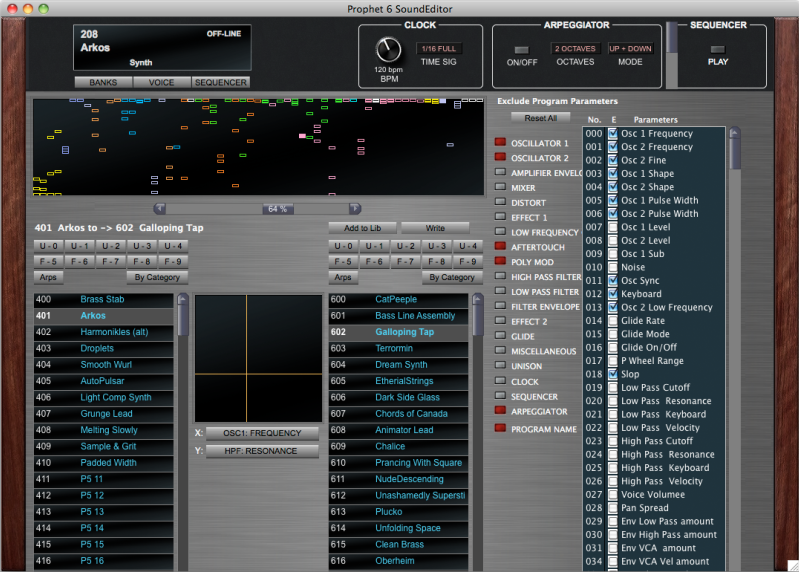
Within the Morpher window, you’ll find a virtual X/Y pad for which you can assign
the horizontal and vertical coordinates to adjust specific parameters such as VCO1
frequency and highpass filter resonance, depending on where you click on the two-
SoundEditor’s Patch Maker window allows you to start with an existing patch, select specific parameter groups — including oscillators, effects, filters, LFO, envelopes, Poly Mod, arpeggiator, and sequencer — from up to 18 other patches, and then combine them all to make a new patch in the P6. It’s crazy stuff, and I’m not making it up.
Open the Sequencer page and you’ll have real-
Although there’s no random function for creating a new sequence, SoundEditor’s sequence
template window allows you to load a sequence from any patch in P6 memory and apply
it to another patch. Using SoundEditor’s sequencer functions allows you to get much
more from the P6’s built-
Soundtower’s Mark Lanoszka spent lots of time preparing the Prophet-

Although the Prophet-
click on images to enlarge them
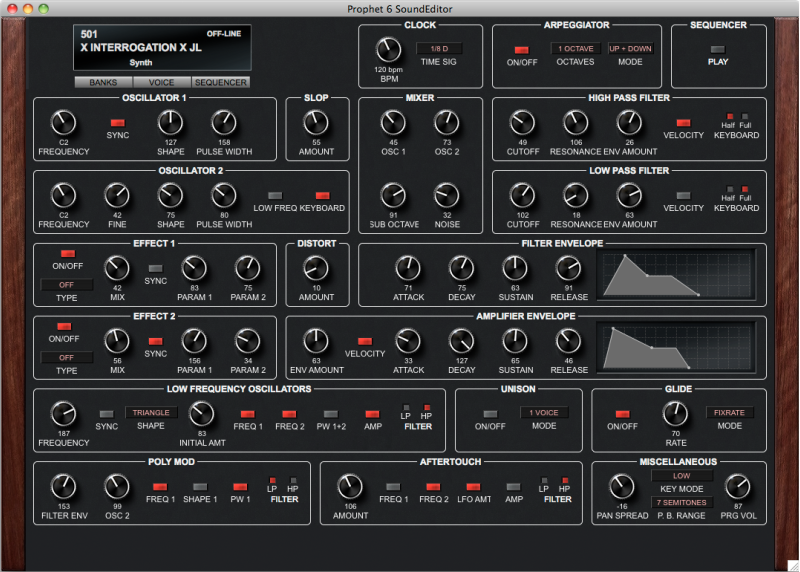
Voice window
Prophet-
Program Banks window
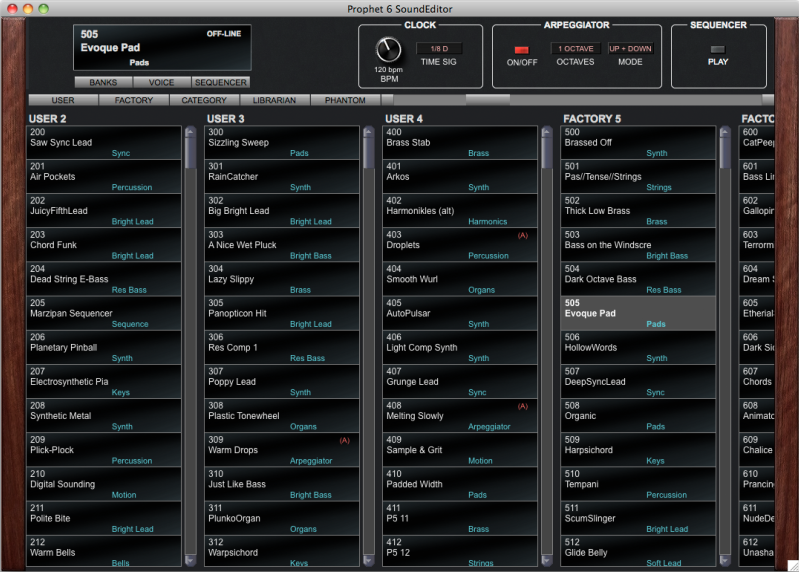

With SoundEditor’s Bank Manager, you can drag single or multiple patches from computer memory, shown in the column to the right, into the left column, which indicates P6 patches last downloaded as a bank. Selecting Transmit will send the selected bank to the P6. Enable Auto Dump and the patch you drag from the right column to the left will automatically appear in the P6’s edit buffer, ready to play. If you click on a patch in the left column, the P6 will jump to that patch in its memory.
Librarian / Bank Manager window

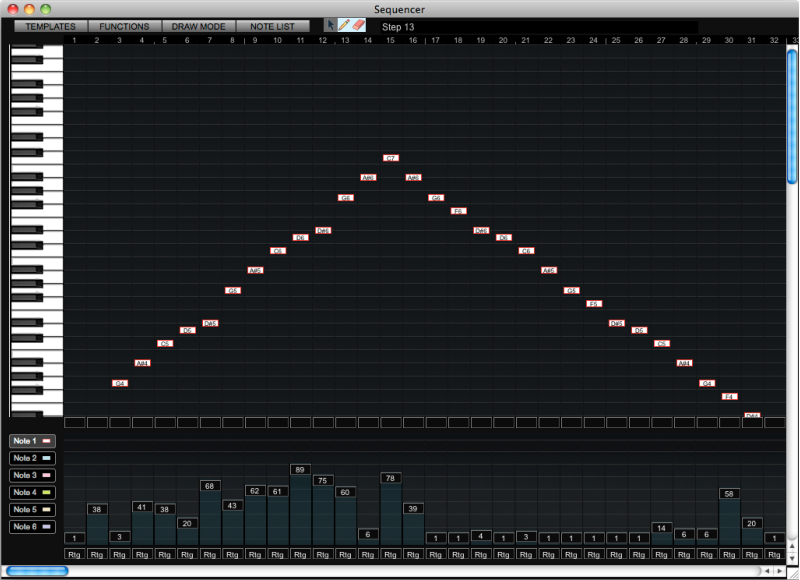
To change the note played by a step in SoundEditor’s Sequencer page, using the arrow tool you click and drag the box vertically to a new position or enable the pencil tool and click anywhere you please in the column. The exact note is designated by text inside the box as well as horizontally within the virtual piano keyboard on the left. After you’ve selected one note, you can add up to five more in the same column and the color of each note’s box will indicate which of the P6’s voices will sound that note according to colors in the six Note buttons beneath the keyboard. You can alter the velocity from zero to 127 for each voice independently by selecting its Note button. While the row of rectangles between the note and velocity lanes allows you to toggle a step to rest or be silent, the bottom row allows you to reset the step at which the sequencer jumps back to step one.
Sequencer window
Select Mommy and Daddy patches on the Program Genetics page, then Mix, Morph, Mutate, or Random their parameters to create a bank of unique patches. You can selectively exclude parameters by group or individually on the right side of the page.
Program Genetics window
Assign parameters to the X and Y coordinates of the two-
Program Morpher window

In the Patch Maker window, you can alter an existing Prophet-
Patch Maker window