
SoundTower Software
Q-EditPro SE
v5.0.0User Guide.
Copyright © 2006 SoundTower Software www.soundtower.com
professional support for:
Waldorf
Q
™uQ + Q Rack + Keyboards
Congratulations and thank you for downloading/purchasing Q-EditPro SoundEditor for the Waldorf uQ/Q Rack and Keyboard synthesizers! Q-EditPro is designed to be the ultimate tool for organizing and creating presets for your Waldorf series instrument.
Through a MIDI connection, this program can receive and transmit single programs, Multis, drum patches or entire Q data. Once the components are transmitted to the computer, all parameters can be displayed and edited in a graphical user interface. The program can also be used to learn the inner details of the Q architecture. Sounds, Multis and other components can be added to libraries in user-named categories for creating custom banks – a terrific feature for musicians looking to organize patches for easy retrieval later!
In addition, a genetics function is available to create new Q Sounds simply by mixing, morphing or mutating two patches together into a whole new bank or using smart algorithms to achieve the best random patch generation results.
This manual, both a user guide and handy reference, is designed to get you up and running quickly. We hope you enjoy using SoundEditor for your uQ/Q synthesizer!
The Software Development Team
Software Development: SoundTower Software, Windsor, Ontario, Canada.
User Guide Development: Derek Prowse.
Support for this product is available at:
http://www.soundtower.com/q
Q-EditPro is designed to run on
MAC OS X, Windows 95/98/XP Windows 2000 and ME OS. With some earlier Windows ME or Windows 2000 Service pack the manual setup may be required.The Q-EditPro application requires (suggested):
Pentium 100MHz (Min)
10MB Hard Drive space
128 MB RAM (min.)
1024 x 768 minimum screen resolution.
A MIDI interface.
It is best that the Q firmware be as current as possible to get the most from SoundEditor.
A wheeled, two–button mouse is recommended for additional control of the program.
To get the most out of the Q-EditPro program you should first be familiar with the operation of your Q-series instrument. The Q-series instruments offer an abundance of programmable features, and Waldorf’s Operation Manual is the key resource for a complete explanation of the features and workings of the instrument. Although this software program can be an invaluable resource to aid in understanding your Q-series instrument, it is not a substitute for reading the Operation Manual.
This User Guide will walk you through the steps to setup Q-EditPro with your Q-series instrument. The EDITORS SETUP sections should be followed first to get the hardware properly connected and running with the SoundEditor software. From there you can freely explore SoundEditor, edit and audition sounds, create new ones and have some fun! The Q-series is a deep and complex set of instruments with many programming options.
With this in mind, SoundTower editor has been designed to be as simple and easy to use as possible while retaining all of the functional control needed to adjust every single uQ/Q parameter.
A note on Demo mode:
File saving and writing to the uQ/Q disabled. As are Effects, Delay, Reverb and Compressor editing. Enabled are editing of AMP and Global Settings parameters. To enable these functions please register your copy of Q-EditPro.
http://www.soundtower.com/orders/orders_q.htm
For the editor to communicate with Q you need to select the Midi interface to which Q is connected to in the editor's MIDI Setup window:

To open MIDI Setup, click on Midi menu and select MIDI Setup or use computer's shortcut key F2.
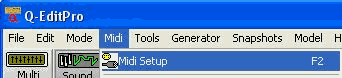
In MIDI Setup, select both MIDI In and MIDI Out ports where Q is connected. If MIDI communication is working correctly then the word "Connected" will be displayed in on top of the MIDI Setup window.
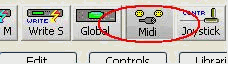
At anytime you can access the MIDI setup by clicking on the main button menu for MIDI:
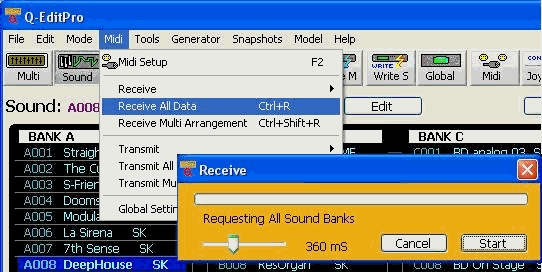
To receive all user data from Q, select "Receive All Data" form Midi menu or use Ctrl+R. and press start. If for some reason your Midi interface can not keep up with fast coming midi messages, you can adjust timing by adding delay in milliseconds.
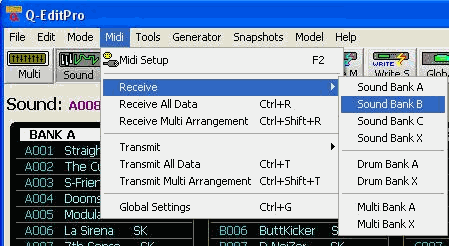
To receive individual bank data from Q, select "Receive" form Midi menu or use Ctrl+Shift+R and press start. As in "Receive" individual data cases if for some reason your Midi interface can not keep up with fast coming midi messages, you can adjust timing by adding delay in milliseconds. Here you a have few choices: to receive only Sound Bank (A to X), Drum bank (A or X) or Multi bank (A or X).
To receive multi arrangement data from Q, select "Receive Multi Arrangement" form Midi menu or use Ctrl+Shift+R. and press start. As in "Receive All Data" and "Receive" individual data cases if for some reason your Midi interface can not keep up with fast incoming midi messages, you can adjust timing by adding delay in milliseconds.
To transmit User Data from the Editor to Q select "Transmit" from Midi menu. Here you a have a few choices: to send only Sound Bank (A to X), Drum bank (A or X) or Multi bank (A or X).
Transmitting bank data takes little bit longer than Receiving because the editor has to wait till Q performs actual writing to its flash memory and sends the "Ready" message.

Changing Patch parameters is very simple. You can use sliders, knobs or, if your mouse is equipped with a scroll wheel, you can simply move mouse cursor over a control or its label and scroll to increase or decrease values by 1. While using a mouse wheel, you do not even have to click on any controls to change values.
When you use the Q-EditPro for the first time if you have not initially connected the editor to the hardware you will find all the patch list boxes to be empty. To load with factory Patches go to File menu and select Preload Factory. This will load the all parameters for factory installed patches.

Other options for subsequent use of the editor include loading in previously saved data banks (Crtl+O) in File menu (above). The option of saving and loading Multi part arrangements are also made available in the same menu. (To load use short cut keys: Ctrl+Shift+O and to save use short cut keys: Ctrl+Shift+S).
The Sound Editor’s Librarian and its user saved libraries are accessible in this menu. See the Librarian section of this user guide for detailed use and functions of the Librarian.
SELECTING PATCHES FOR EDITING OR AUDITION
Both Sound and Multi Modes are enabled in the STS Q-EditPro. To toggle between these two modes user presses F5 for Sound Mode or F6 for Multi Mode. These choice can be made under Mode in main or by using the Multi or Sound buttons on main screen.

These present different display interfaces for patch manipulation. We will deal with the Sound Mode first.
After Receiving User Data or loading in Factory Patches, the Patch names are displayed in Sound Mode "Bank" section list boxes; Bank A through C and Drum Bank D.
There are many options offered for control of these patches at entry point in the software. Most are access by right clicking on the desired patch. Initially five options are presented. If "Copy" is selected then the next time you right click on a patch you will also be presented with a sixth option, "Paste".

In the option menu presented you may choose to rename if you like by simply selecting "Rename…" and using the popup you can retype the name.

The bank sections can be used not only to select and display Q's Factory Patches but also to perform Patch copy/paste functions:

·
Copy command copies selected Patch to editor's clipboard.·
Paste sends and saves copied Patch to selected list box position selected.If you use copy function from window's Edit menu, the current Patch being edited will be copied.
If you use paste function from window's Edit menu, the copied Patch will be pasted to the list box positions and becomes the current patch in active edit.

You can load and save the single patch from the right click accessed popup menu as well. See above image.
To actually send the patch under edit to Q hardware you must select "Write Sound" (Ctrl+W) from the main Edit menu or click on the main button menu Write S button to do so.

You will be prompted by a send dialogue box that will offer you the opportunity to pick your destination Bank, memory location and new name for patch if desired.

Here we arrive at the heart of the SOUND MODE functionality. Individual program editing is fully integrated into the SOUND MODE user interface. Access to editing is accomplished in two ways.
First by selecting a patch in the list box by right-clicking the pop up menu that is presented offers you the option of editing as you fourth choice.

Selecting this or clicking on the EDIT button situated above list box:

The patch to go to editing will be the one you selected by left click (blue in above image) and will be displayed in text box to the left.
All parameters that make up the patch have manipulability from the edit screen.

Individual parameters can be modified by left clicking on a black label and moving the slider that pops up with the cursor or if your mouse is equipped with a mouse wheel.

You can also just mouse over the label and use the mouse wheel with out clicking. Some of the labels open up a list box.
Note that when the edit screen opened there also appeared a  button beside the "Edit" button. To expand each of the parameter
groups (Osc1, Osc2, LFO1 etc) for a more intuitive control experience click on
to open the scrollable controls panel.
button beside the "Edit" button. To expand each of the parameter
groups (Osc1, Osc2, LFO1 etc) for a more intuitive control experience click on
to open the scrollable controls panel.

The grouped controls are all easily accessible on the main screen of the editor. As shown above we have included a separate control panel for detailed adjustments. All the parameters that can be controlled at the edit screen are expanded allowing for more detailed control for that group (see Osc1 example below).

Each of the included slider and knob controls map the label values found on the edit screen. Note that on the left of the control panel are a column of buttons offering one click access to the control needed.

Each of the grouped parameters have their own button (1), "Arp", "Mod M" and "Slot M" (2 to 4) open a new window with these parameter sets, the check box (5) expands the Control panel to full screen while the slider, used for debugging initially, was kept in for those that prefer sliders over buttons (6). Every change made on the controls panel is immediately updated in editor.
The control panel will let you control all of the groups of parameters as defined by Q:
Osc1, Osc2, Osc3
Mixture
AMP
Sound
Glide
All four Envelopes
Filter 1 and 2
HP Horn
Pitch Mod
LFO1, LFO2, LFO3
Effects 1 and 2
And Routing.
Accessed from the control panel, as well as from the main editor window panel, are:
ARP
Modifier Matrix
Slot Matrix
We will take some time and look at each of the control groups in turn.
All three oscillators are detailed in the control panel. Within the Osc panels you are able to adjust the following parameters using sliders, knobs and popup menus from the labels:
Octave
FM
PlsWd
Semi
PWM
Detune
KeyBoard pressure
Bend
FM Source
Wave Shape
PWM Source
Sub Freq Div
Sub Volume
And to turn on/off Osc Sync

Mixture is detailed in the control panel. Within the Mixture panel you are able to adjust the Level and Balance of the following parameters using sliders and knobs:
Osc1, Osc2, Osc3
Noise
Ring Mod
The N/E Select F1 and F2 are adjusted through popup menu options found by clicking their labels.

Amp is detailed in the control panel. Within the Amp panel you are able to adjust the Volume, Velocity and AmpM level with knobs. The Amp Modulation is selected by clicking on the Modulation labeled list box.

Sound is detailed in the control panel. Within the Sound panel you are able to adjust the Rate and Uni Detune levels with knobs. The Unison and Mode parameters are changed by a click on the appropriately labeled list box. The Envelope Select is changed by clicking the label and selecting the option from the popup menu.

Glide is detailed in the control panel. Within the Glide panel you are able to adjust Mode by a click on the list box. Make active by clicking on the green LED.

All four Env are detailed in the control panel (Env1 or Filter Env, Env2 or Amp Env, Env3 and Env4). Within the Env panels you are able to adjust the following parameters using sliders, knobs and popup menus from the labels:
Mode
Attack Time
Decay 1 and 2
Release
Trigger
Attack Level
Sustain 1 and 2.
The envelope draw screen is interactive. If the user clicks on the green dot at the apices found at 1, 2, 3 or 4 you can ‘draw’ or move the shape by mouse. The knobs move the apices in the following order:
Horizontal change:
Knob "Attack Tm" maps to point 1.
Knob "Decay 1" maps to point 2.
Knob "Decay 2" maps to point 3.
Knob "Release" maps to point 4.
Vertical change:
Knob "Attack Level" maps to point 1.
Knob "Sustain 1" maps to point 2.
Knob "Sustain 2" maps to point 3.
Only the first Env has an image in this Guide as all the Envs have the same parameters and have the same functionality.

Both Filter 1 and 2 are detailed in the control panel. Within the Filter panels you are able to adjust the following parameters using sliders, knobs or popup menus from the labels:
Filter Type
PAN, Pan Mod Source and PanMod
Modulation Source, CutMd, Cut off, Resonance
FM Source, FM
Keyboard
Env
VelM
And Drive.

HP Horn is detailed in the control panel. Within the HP Horn panel you are able to adjust Mode and Patch by selecting from an option from popup menu after you click on one. Change patch parameter value by use of slider.
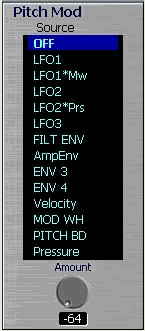
Pitch Mod is detailed in the control panel. Within the Pitch Mod panel you are able to adjust Source by selecting from an option from popup menu after you click on list box. The amount is changed with knob.

LFO 1, 2 and 3 are detailed in the control panel. Within the LFO panels you are able to adjust the following parameters using sliders, knobs, LED’s or popup menus from the labels:
Shape
Speed, StPh, Delay
Fade, Keyboard
Sync
And Clock.

Effects 1 and 2 are detailed in the control panel. Within the Effects panels you are able to adjust parameters pertaining to
Bypass
Chorus
Flanger
Phaser
Delay
Overdrive
Five FX
Vocoder
Reverb
Tab Delay
5.1 Delay
using sliders and knobs. In the image above Effects 2 has four parameters (plus Amount) that pertain to Flanger. A ghost of the drop down box indicates the user is going to select Overdrive effect. This will reset the knobs to correspond to the three that make up Overdrive. The minimum is zero for Bypass and the maximum number of controls will be 14 for Vocoder.
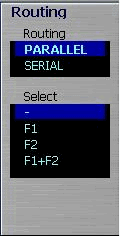
Routing is detailed in the control panel. Within the Routing panel you are able to adjust Routing and Select by selecting from the appropriate list box.
These three uQ/Q functions are given their own windows as the complexity of these functions demand a dedicated work surface.
Arp can be accessed through the main editing panel by clicking the topmost button of the Arp, Modifier Matrix and Slot Matrix

or in the Controls panel as the bottom three buttons at the left most side of the window.

When in the Arp window of uQ/Q the first thing that is evident is the four panels used to draw the steps:

Corresponding to the 16 channels you can draw free hand, by just mousing over ( no left click required) the pattern for "Steps" (
1), "Step Length" (2), "Timing" (3) and "Accent" (4). User can click on "Glide" LED’s individually (5). The "Pattern Length" can be adjusted with slider (6) and an analogue indicator in the slide bar (6) mirrors the length tying it visually to the channels. The bank of sliders (7) is used to adjust parameters that include:
Length
T Factor
Pattern Type
Vel Mode
Sort Order
Tempo
Clock
Max Notes
Range
"Pattern Reset" and "Same Note Overlap" are accomplished by use of the two LED’s situated just under the bank of sliders.
The "Restore/Compare" button (
8) toggles the pattern settings back and forth between the original settings at window initialization and the modifications made by the user.The "Select From Bank" button (
9) opens the Sound Selector window and lets you select your favourite Sound to take the Arp data from as starting point.
This window allows for complete parameter access of the Modifier Matrix using mostly popup menus activated by clicking on the labels.

The "Restore/Compare" button toggles the pattern settings back and forth between the original settings at window initialization and the modifications made by the user.
The "Select From Bank" button opens the Sound Selector window and lets you select your favourite Sound to take the Mod data from as starting point.
There is also the added button "Reset All" to clear all parameters for quick restart.
The Slot Matrix window includes full control of both Fast and Standard slots. The is complete control of all parameters in this function. Click on the labels and select the desired parameter mapping with a left click and it is set.

This particular setup that you see represented above has been set from A096 Sierra Velone SK found by clicking on the "Select From Bank" button and clicking once on the Sound.
The "Restore/Compare" button toggles the pattern settings back and forth between the original settings at window initialization and the modifications made by the user.
There is also the added button "Reset All" to clear all parameters for quick restart.
Both Sound and Multi Modes are enabled in the STS Q-EditPro. To toggle between these two modes user presses F5 for Sound Mode or F6 for Multi Mode. These choice can be made under Mode in main or by using the Multi or Sound buttons on main screen.

After Receiving User Data or loading in Factory Patches, the Multi Patch names are displayed in Multi Mode "Bank" section the "Multi Bank" list box. The second (smaller list box) lists the instruments that make up the selected Multi. That maximum is 16 for any one Multi.

There are many options offered for control of these patches at entry point in the software. Most are access by right clicking on the desired patch. Initially three options are presented. If "Copy" is selected then the next time you right click on a patch you will also be presented with a forth option, "Paste". (See above.)
In the option menu presented you may choose to rename if you like by simply selecting "Rename…" and using the popup you can retype the name.

The bank sections can be used not only to select and display Q's Factory Multi but also to perform Multi copy/paste functions:

·
Copy command copies selected Multi to editor's clipboard.·
Paste sends and saves copied Multi to selected list box position selected; all individual Patches that make up that particular Multi is copied across.If you use copy function from window's Edit menu, the current Multi being edited will be copied.
If you use paste function from window's Edit menu, the copied Multi will be pasted to the list box position and becomes the current patch in active edit.
To actually send the Multi under edit to Q hardware you must select "Write Multi" (Ctrl+M) from the main Edit menu or click on the main button menu "Write M" button to do so.

You will be prompted by a send dialogue box that will offer you the opportunity to pick your destination Bank and new name for Multi if desired. Note that each of the individual instruments that make up each Multi can be renamed as well.

In this case when the "Write" button was clicked the editor prompted with a message box warning that ten of the sixteen instruments had destinations that where identical to their source.
The red circles are meant just to demonstrate that this is a write for Multi 12 as selected from the list box. Directly under the Instruments list box you will find a selection of controls that are more global in nature.
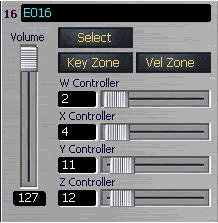
The master volume and the W, X, Y and Z controller sliders set the over all levels here. The three buttons, "Select", "Key Zone" and "Vel Zone" above the Controller sliders open windows for each of these functions for modification.

The instrument that was selected in the Multi window is highlighted. In the case above it is #15. Right clicking on the selection results in a popup menu as seen below:

From here you can Copy, Paste, Rename, Load and Save as seen in the Sound Mode example. Selecting "Edit" results in Multi Mode Edit window activation.

The Multi Edit window allows for all parameter editing of a selected instrument. Any of the instruments in the selected Multi can be put into active editing by left clicking on the Instrument list box to the left. Each of the "Select", "Key Zone" and "Vel Zone" functions can be accessed from this Multi Edit window. These functions are described below.
As in the Sound Mode edit function the button
is present that allows for the actively edited Instrument to be more finely
edited in the full controls panel.
When the Key Zone button is selected the key zones control for all 16 channels is displayed:

When the Vel Zone button is selected the velocity zones control for all 16 channels is displayed:

The Drum Map section of the main Multi editor's screen shows drum mapping linked to a current Multi with Instrument Name, Key, Output, Volume, Pan level and Transpose value.
Up to thirty two may be defined for each map.To change linked Drum Mapping from the main editor screen simply move your mouse over the instrument selection that is a drum patch and click on it. The main Drum Map window will open.

The smaller control panel at the top left of the window contains additional control features.
From here you can access the Arp function, apply both Effects to the pattern while adjusting the mix for both. The option to Receive, Send and Write to hardware is also enabled with use of the provided buttons.

When one of the Effects labels is clicked on, by way of example the label for Effects 1 above, a sub window with mapping controls for Effects1 and Effects 2 will open:

Note that at circled label (1) we have changed Bypass to
Phaser by clicking on label and selecting from popup menu. If you have a
favourite Effects parameter profile you want to use from another Sound click  button and select the Sound from the window (see below):

You can select the Bank from which to take the Sound from. A through C sounds and the D drum bank. Just double click on your selection and it will be applied.
By left clicking on one of the 32 instrument names you open the Sound Select window letting the user change the instrument applied.

Clicking on the Key label opens a keyboard in its own separate window from which the key may be selected.

Mousing over the Volume, Pan level and Transpose value sliders will allow value changes with use of the mouse wheel only if so equipped.
The Q-EditPro incorporates three powerful control features designed to enhance both organizational and real time editing experiences. A Mixer, Patch Librarian and Continuous Controller Mapper. The Mixer is a full featured mixing board for multiple instrument patches. The Librarian you will find to be the heart of the editor’s organizational power. Our Continuous Controller Mapper gives the user complete flexibility in assignment of parameters and controllers.
Accessed on main Multi window. Click  and then
click
and then
click  to access the Mixer window.

Along the top channels 1 to 16 list each instrument included. Click on name labels and the instrument Select window will open allowing for on the fly changes. The Mixer allows for adjustment of:
Instrument
Channel
FX1 and FX2
Pan
Output level
Transpose
Det and SqP
All changes in Mixer are reflected in real time changes in Multi editor.
Here is where you can really thrive too. It will pay a lot to familiarize your self with all librarian features.
There are multiple points of access to the librarian. By clicking the Library button on the main editor in Sound Mode,

or in the main menu under File

as well as using File in main menu and selecting the Library in drop down menus (At any time you may also hit Ctrl+L and the library will pop open.)
Our librarian lets you store unlimited number of Q sounds. In addition you can have as many Library files on your computer as you want. Each item stored in the library consists of one full Patch with all parameter adjustments. This way you never have to worry about loosing your favorite Q settings. The librarian provides for you 32 sound categories to organize your sounds and to have them available for immediate use. Initially, we named some categories like "Pop", "Rock" but you are welcomed to rename them according to your styles or needs.
Adding Sound or Drum to the librarian
To add current Patch, select a category you want to add and press  .
.

If you like to import whole User Patch bank with use "Preload Factory" function in main windows File menu as described in Sound Mode chapter or "Receive all Data" first to assure that it corresponds to your Q data.
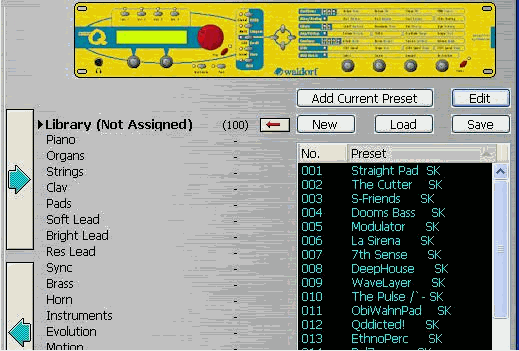
You can use the Librarian to build a set of Patches from those you are working on in the Editor currently or by sensed changes from the Q by clicking the Add Current button.
The other option is to load a pre-existing Library file previously saved on your hard drive or Load from User Bank Data.

For the next example we shall load in User Bank Data. This results in all patches being dropped into the Not Assigned category circled in red in image below.

Adding Patch to the librarian
To add current Patch select a category to which you want to add and press the
"-" beside the category to move the arrow button:

Now if we select 004 Dooms Bass SK to be moved from "Not Assigned" to "Organs":

After clicking the arrow we should see the total number of Patch remain the same but the relative distribution between categories change. Here we see 99 in "Not Assigned" and one in "Organs". Also note the list box has adjusted itself making the next Patch in the list, Modulator SK, move from 005 spot to the now vacant 004.

All categories can be renamed. In the image below, after the Evolution category field was clicked once on the little arrow or Rename is selected from Librarians File menu, we create a category needed by just typing.
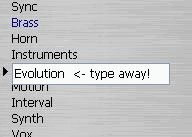
Assume for the rest of the example we typed in JAZZ.
A single click on the new JAZZ Patch and you select it for movement to the new category by clicking the arrow button or simply dragging and dropping it with the mouse.
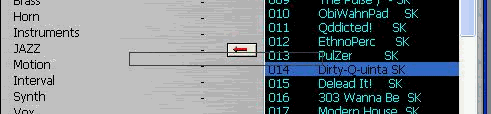
Note also that if the Multi Select option is checked
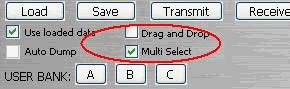
then it is a simple matter of highlighting a range of Patch with a drag of the cursor

or select non-congruent individual Patches by ctrl + click

you can move them with cursor or with the arrow button

Note that 5 Patches were selected and 5 show up in the category. The other category the Patches were taken from adjusts automatically.
Any Patch or group of Patches in the list box can be selected and copied by Copy in Edit in Librarian menu. The selected group can then be Pasted by using the Paste in Edit in menu to copy the selection, with altering the original set of Patches, to another category.
In this way the Librarian can be used to select and sort the entire Patch banks for more functionality suited to the individual musician.
Further functionality has been added to v5.0.0 under the "Librarian" menu item. Here you will find the ability to include the Top Offspring from Genetics, Load from User Banks, Load Editor Files, Rename and Clear Category and also reload Defaults as needed.
See image next page.
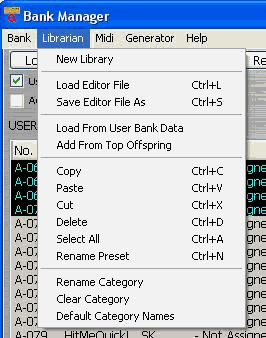
The Librarian includes a Midi menu selection with a reduced version of the main window’s Midi menu to allow for one window modifications of Mid Setup and for sending and receiving currently used Bank and, if needed, current Sound used.

Under Generator menu item there is access to the Genetics and Morpher functions. This will be addressed in the Genetics chapter next.
The Genetics function can be accessed in two ways. In the main menu under Generator (Ctrl+G)

as well as under the Generator menu item in the Librarian as discussed in previous chapter.
The Genetics window is actually a multi function window. Included are four algorithms designed to blend any two Sound parameter mixes to create unique Sounds that can be used as is or as a take off point for more development. The four are: Mix, Morph, Mutate and Randomize.
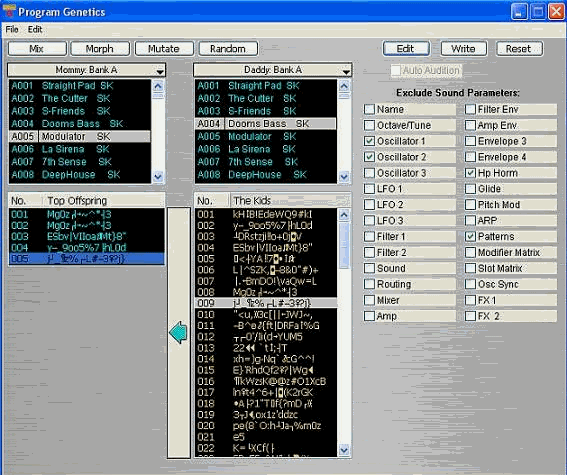
Mommy Bank and Daddy Bank selection is made by clicking on these two labels and selecting the bank from the dropdown selection. To the right you see checkboxes with Sound parameters to exclude from the algorithms. Once the bank selections and exclusions have been made it is a simple matter of picking the genetic recombination algorithm to apply by clicking one of the following buttons.

The results of the recombination are placed in "The Kids" list box to the bottom right of the Daddy list box. You will note that the result (Kid) selected can be loaded to the main editor by clicking the Edit button at the top right. The new creations can be written to hardware to judge the result aurally. In the main menu of this window you can access the Librarian (or Ctrl+L) and start a new library of these sounds.
The most interesting of the resulting Kids can be selected individually by clicking on new name once, clicking the large arrow key and so move them to the left most "Top Offspring" list box. If you feel that a move was a mistake you clear the selection by using the main Edit menu and selecting "Clear Top Kits".

Though the editor automatically creates new names for the generated offspring, again based on the same algorithms, you are not tied to the name that was generated. You can rename them in several ways. Click on Edit in Genetics window main menu and select "Rename." The popup will allow you to rename and save this change. Another option is to write this selection to be edited in the main Sound editor and rename as discussed earlier in this User Guide. If you select "Librarian" in File menu option or Ctrl+L you can click "Add Current" button which will load the patch into the right most list box. From here you can then double click on the patch and use the resulting popup to rename.
This section details the remaining functions that add flexibility and strength to the functionality of the Q-EditPro though may not be used as often as the more powerful EXTENDED functions. The functions discussed here are SNAP, Joystick, Mouse Piano and the use of the main Button Bar itself.
SNAPSNAP may be accessed simply by clicking the  button on the m Q-EditPro main window. To view the snapshots taken during
editing session click
button on the m Q-EditPro main window. To view the snapshots taken during
editing session click  . This will pop open a
separate window that will list and allow for switching in real time between the
patches being edited and auditioned or written to the hardware.
. This will pop open a
separate window that will list and allow for switching in real time between the
patches being edited and auditioned or written to the hardware.

Note that under the Edit menu you are given the options or Copy, Paste, Rename and Clear Snaps.
This button BAR just below the main menu gives the added ability of being able to quickly access the most commonly used functions with out having to dig through menus. Basic Open, Save, Send and Receive functions are included. You can quickly toggle between Multi and Sound modes and know which mode you are by quick visual inspection. Write M allows for writing Multi only when you are in Multi Mode. Write S in either mode. Global access can be made on button bar or from menu under MIDI as discussed earlier. MIDI set up can be quickly accessed.

The Joystick function and onscreen virtual piano can be opened on this bar. More on both in next sections.
Note that we have left in what was originally a debugging feature on the far right side of the Button Bar. In the red circle you will notice a number 9 in parenthesis and a string of MIDI data. The (9) is the Sound Mode with the MIDI data corresponding to the patch corresponding to the parameter written out as it is manipulated.

At the bottom the Channel, note and velocity of the key is noted after a click on the MOUSE PIANO.
To change Joystick/Continuous Controller settings in any of Sound or Multi modes there are two options:
1) Click the button found on the top tool bar or
2) Go to Tools in menu and select CC Joystick

From the resulting window all Joystick, or Mouse functioning as Continuous Controllers, values can be set. Left and Right Mouse button assignment are chosen through LM and RM drop
down menus.
Joystick/mouse can be toggled on or off Midi channel is easily selected from drop down menu
Joystick reset ON/OFF is chosen by clicking JS Auto Reset. The Joystick/mouse control values can be set by mousing over to grid to left and clicking and dragging on the screen; left mouse button is in red and right is in blue. Sliders accomplish the same effect. This example was with Auto Reset OFF.
The two rightmost sliders are used for Pitch Blend and After Touch control.
Mouse Piano can be accessed on the button bar as described above or using the Tools selection in main menu and choosing the V-Piano option. (Ctrl+P).
Our mouse piano incorporates Pitch (1) and Mod (2) wheels, as well as the option to adjust the Velocity from 0 to 127 (3), choose a key to play in (4) and the output channel (5).

When finished with the piano click the piano button again or Ctrl+P again.
The mouse piano can be used in two modes. One is fixed as the bottom of the editor screen and will look like that above. If the user first sets preferences for mouse piano to be opened in new window the piano can be placed on your window where it will make most sense to the user. See preferences next.

The functionality is the same.
The preferences option in the main File menu lets the user set a few global setup features newly introduced to deal with some of the bugs inherent to the Q hardware architecture.
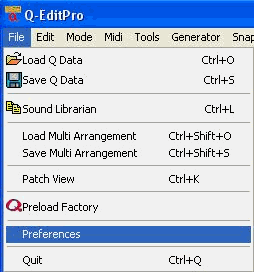
From here the selections are a simple matter of a click of the mouse.

The options include setting such features as:
Auto Dump enabling during editing
Offsetting the sound data to work around uQ system offset bug
Set Mouse Piano floating piano on or off
Set keyboard keys as note playing keys on/off
And set the option to on or off to allow forced librarian save on exit
Cubase and Cakewalk Patchview Script
Cubase and Cakewalk script generation from any of the Sound Banks, Bank A of the Multi Mode and the Drum Bank (D). To use it is a simple matter of clicking on the File option of the main menu and selecting "Patch View" (Ctrl+K):

In the Patch View window you are given options to select any of the mention banks for inclusion in the text box for script generation:

Note in the example shown above, Bank A was selected (
1) (All current Sounds in Bank A are listed to the right). It is a simple matter of selecting "Create Cubase Script" or "Create Cakewalk INS" (2) to generate the script. It will be displayed in the same text box.
The model of your hardware that the sounds are being edited for is an important consideration for the Q-EditPro software. There are some engine differences between the uQ and the Q Rack and Keyboards that must be respected to get the most of your editing.
Upon initial start up the Q-EDitPro will either ask you which model you are going to be operating and subsequent start ups it will check the stored .ini file for the last model used and open in that mode.
If for any reason you wish to change model you are operating go to the main window menu and click on Model option. You can choose the model from the drop down menu.

After changing from one model to another you will be notified that for the change to be made the Q-EditPro must close and be reopened. After you click "OK" the editor will close and you will be required to reopen it.
To determine the version number of you Q-EditPro click on the main menu Help option

and select "About". A flash screen with current information will be displayed.
If you are ready to move on from the demo version of the Q-EditPro you will have two options to do so. One is to go directly to the SoundTower site found at:
and follow this link:
http://www.soundtower.com/q orclick on the main menu Help option and choose "Register".

This will direct your default Web Brower to our registration web page at:
http://www.soundtower.com/orders/orders_q.htm