
PATTERN LIBRARIAN
The Pattern Librarian is a powerful program editing and organizational tool of Triton Sound Editor.
To use the Pattern Librarian you need to enter Arpeggio Pattern editing when in Program, Combi or Sequencer Modes. Click on the Arp panel (found in Edit mode for Program and Combi modes.).
You use Arpeggiator window to change global Arp
settings. To set the pattern to edit select arpeggio pattern with left mouse click
on leftmost list panel  ( To do basic editing of parameters use sliders and switches in rightmost panel
  .
These settings modify overall playing characteristics of the underlying pattern
of the selected arpeggio only. See Arpeggio
Editing module in tutorial for more information on this function.) To edit
any of the USER patterns, select a USER pattern (000-XXX) and click EDIT button
.
These settings modify overall playing characteristics of the underlying pattern
of the selected arpeggio only. See Arpeggio
Editing module in tutorial for more information on this function.) To edit
any of the USER patterns, select a USER pattern (000-XXX) and click EDIT button  (See Pattern Editing module in
tutorial for more information.)
(See Pattern Editing module in
tutorial for more information.)

The Pattern window should appear behind the Arp editing window with Pattern of selected Arpeggio loaded.
Select library button to call up Triton Pattern
Library  .
.
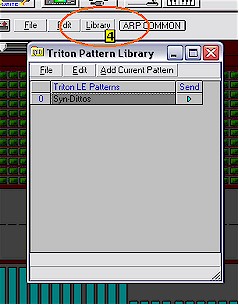
There are several ways to load the Library with Patterns you wish to save or sort.
1) Go to File in Menu and select Open (CTRL-O):
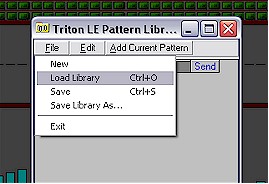
Files are saved with and loaded from the .tpl extension.
New will reset the Library.
To load current pattern into Library, select and click
Add Current Pattern
button  . In the example
below we had first selected Syn-Repeat then clicked Add Current Pattern.
Secondly, loaded Str_Classical 3 into the system and clicked Add Current Pattern again. By
selecting the Send icon associated with either of the two patterns that pattern
is loaded to the keyboard for auditioning.
. In the example
below we had first selected Syn-Repeat then clicked Add Current Pattern.
Secondly, loaded Str_Classical 3 into the system and clicked Add Current Pattern again. By
selecting the Send icon associated with either of the two patterns that pattern
is loaded to the keyboard for auditioning.

The program being auditioned and edited can be
renamed and saved (using File in menu.) To rename, double-click on the text and
retype  .
.

The programs added to Library can be sorted
alphabetically by selecting Sort in the Edit drop down menu  .
.
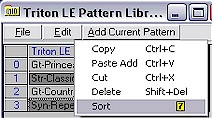
Added programs can be individually or group deleted from list by first clicking on program(s) and then selecting Delete (Shift+Del) in Edit menu. Those so selected cannot be pasted back into memory. Select Cut from menu if you wish the program to be removed from Library but still be available for Paste Add.