to switch to PROGRAM (PLAY) MODE. Use
  to move into Program Edit Mode.
EDITING PROGRAM PARAMETERS
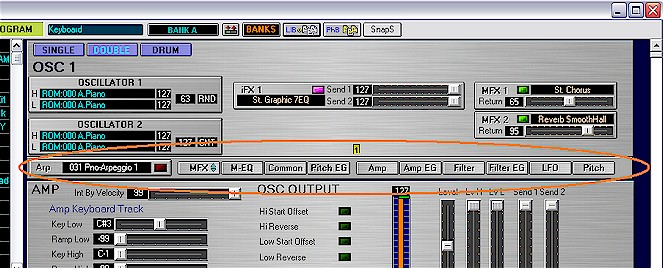
In addition to the parameter set up common to both Combination Edit and Program Edit there is an additional task bar containing buttons linking to the controls unique to Program Edit.
Use Mode button
to switch to PROGRAM (PLAY) MODE. Use
to move into Program Edit Mode.
Except for the Drum settings these are accessed
by either scrolling down to the active part of the window or by use of the
buttons  on the task
bar.
on the task
bar.
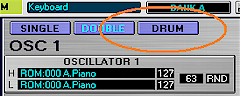
Drum settings are accessed through the drum button  found a the top of the window beside the oscillator selection buttons. Drum Kit
editing is dealt with in Editing Drum Kits and Drum Instrument Library tutorials.
found a the top of the window beside the oscillator selection buttons. Drum Kit
editing is dealt with in Editing Drum Kits and Drum Instrument Library tutorials.
OSCILLATORS
There are two Oscillators available to create programs.
Use the  or
or  buttons to
select OSC 1 or OSC 1 and OSC 2. Clicking on the Oscillator panel will load the
parameters of the selected program into the editing features accessed through
buttons as described above (see
.)
buttons to
select OSC 1 or OSC 1 and OSC 2. Clicking on the Oscillator panel will load the
parameters of the selected program into the editing features accessed through
buttons as described above (see
.)
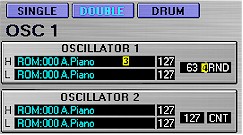
Each oscillator has high and low multisound
inputs. These are selected by clicking on name boxes H and L  .
.
The Oscillator Multisound window allows for selection from ROM or RAM, Sorting by number or Alphabetically and from file.
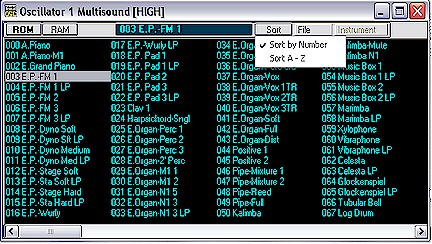
Clicking on value boxes at  (see above) opens a separate window that allows for an abbreviated Osc output
adjustment more fully adjusted in OSC OUTPUT panel found below with the AMP.
(see above) opens a separate window that allows for an abbreviated Osc output
adjustment more fully adjusted in OSC OUTPUT panel found below with the AMP.
When in double oscillator mode the relative levels of both oscillators can be adjusted to fine tune the oscillators mix ratio.
ARP
To display Arp settings click on the Arp panel:

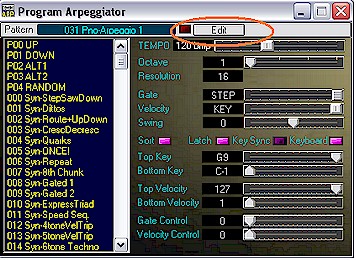
Use Arpeggiator window to change Arp settings. If you would like to edit any of the USER patterns, select any USER pattern (000-XXX) and click EDIT button.
ROM patterns P00 to P04 are not editable.
MFX and INSERTS
You can use panel sliders to change Send or
Return settings or click on  switches to turn effects ON/OFF.
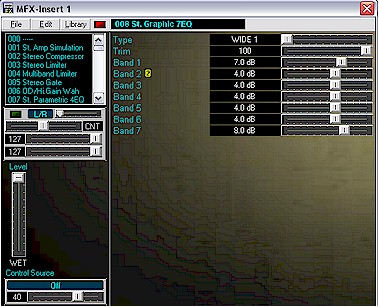
By clicking on Effect panels

you can display full
effect setting  of selected MFX or Insert FX.
The  button
removes the MFX and iFX panels, leaving only the oscillator panels in view, from
the active screen to give more working room for editing functions.
button
removes the MFX and iFX panels, leaving only the oscillator panels in view, from
the active screen to give more working room for editing functions.
(see MFX and MFX Library help files for more in-depth information.)
MASTER EQ
Clicking the  button opens the master equalizer window.
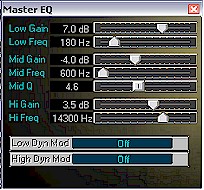
From here gain (low, mid and high), frequency (low, mid and high) as well as mid Q adjusted with the sliders.
The choice of controller for low and high dynamic
modulation is done though name boxes: 
COMMON PARAMETERS
To edit Common settings click  button to display Common parameters window:
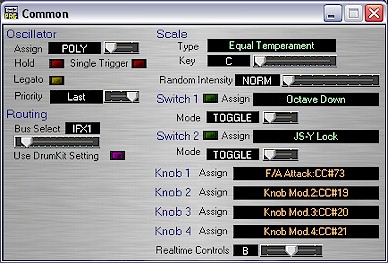
Note that Knobs 1 - 4 can be assigned to control of choice by clicking on
name box and selecting from list. Drum kit settings can be used by clicking  .
.
PITCH EG
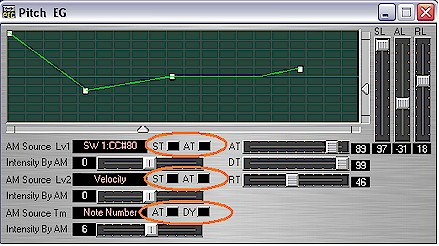
When the  button is selected the Pitch EG window is brought into view. From this window all
Pitch GE parameters can be adjusted. An additional feature is the fully
interactive graphical display of parameters that allows for easy and instant changes of the wave form directly
by the mouse. Any changes to the graphical display are instantly mirrored by
associated slider and numerical value changes. AM Source Lv1, Lv2 and Tm can be
changed by clicking on name boxes
and selecting from list. Polarity switches modify polarity attributes of
waveform (circled below.)
button is selected the Pitch EG window is brought into view. From this window all
Pitch GE parameters can be adjusted. An additional feature is the fully
interactive graphical display of parameters that allows for easy and instant changes of the wave form directly
by the mouse. Any changes to the graphical display are instantly mirrored by
associated slider and numerical value changes. AM Source Lv1, Lv2 and Tm can be
changed by clicking on name boxes
and selecting from list. Polarity switches modify polarity attributes of
waveform (circled below.)
PATCH ASSIGNMENT
To select a different patch for the selected track, click on the Program name.

You can assign the Programs for the selected track either by using the list displaying Programs in banks or by a Program categories.

AMP
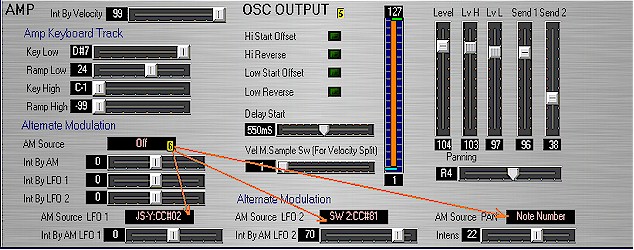
When the  button is selected the Amp panel is brought into view. From this panel all Amp
parameters can be adjusted. The OSC OUTPUT is fully accessed in this panel as
well
button is selected the Amp panel is brought into view. From this panel all Amp
parameters can be adjusted. The OSC OUTPUT is fully accessed in this panel as
well  . Alternative
Modulation (AM) source can be selected by clicking on name box
. Alternative
Modulation (AM) source can be selected by clicking on name box  as can AM for LFO 1, LFO 2 and PAN.
AMP EG
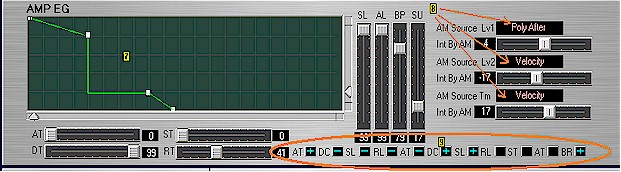
When the  button is selected the Amp GE panel is brought into view. From this panel all
Amp GE parameters can be adjusted. An additional feature is the fully
interactive graphical display
button is selected the Amp GE panel is brought into view. From this panel all
Amp GE parameters can be adjusted. An additional feature is the fully
interactive graphical display  of parameters that allows for easy and instant changes of the wave form directly
by the mouse. Any changes to the graphical display are instantly mirrored by
associated slider and numerical value changes. AM Source Lv1, Lv2 and Tm can be
changed by clicking on name boxes
of parameters that allows for easy and instant changes of the wave form directly
by the mouse. Any changes to the graphical display are instantly mirrored by
associated slider and numerical value changes. AM Source Lv1, Lv2 and Tm can be
changed by clicking on name boxes  and selecting from list. Polarity switches
  modify polarity attributes of waveform.
Filter
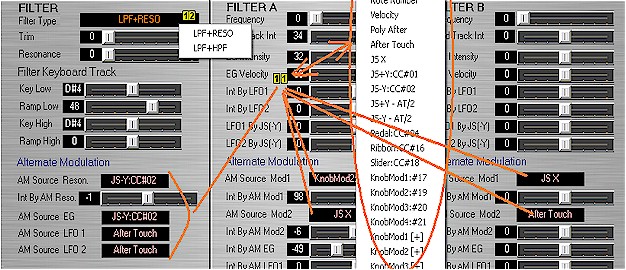
When the  button is selected the Filter panel is brought into view. From this panel all
three Triton Sound Editor filter parameters can be adjusted. All AM sources can
be changed by clicking on name boxes
and selecting from list. Filter type is selected from name box .
button is selected the Filter panel is brought into view. From this panel all
three Triton Sound Editor filter parameters can be adjusted. All AM sources can
be changed by clicking on name boxes
and selecting from list. Filter type is selected from name box .
Filter EG
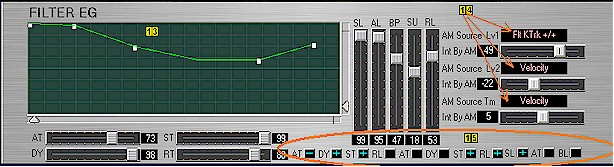
When the  button is selected the Filter EG panel is brought into view. From
this panel all Filter GE parameters can be adjusted. An additional feature is
the fully interactive graphical display
of parameters that allows for easy and instant changes of the wave form directly
by the mouse. Any changes to the graphical display are instantly mirrored by
associated slider and numerical value changes. AM Source Lv1, Lv2 and Tm can be
changed by clicking on name boxes
and selecting from list. Polarity switches
modify polarity attributes of waveform.
button is selected the Filter EG panel is brought into view. From
this panel all Filter GE parameters can be adjusted. An additional feature is
the fully interactive graphical display
of parameters that allows for easy and instant changes of the wave form directly
by the mouse. Any changes to the graphical display are instantly mirrored by
associated slider and numerical value changes. AM Source Lv1, Lv2 and Tm can be
changed by clicking on name boxes
and selecting from list. Polarity switches
modify polarity attributes of waveform.
LFO 1 and 2
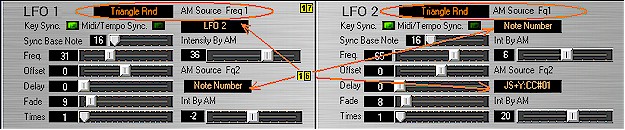
When the  button is selected the LFO panel is brought into view. From this panel all LFO 1
and LFO 2 parameters can be adjusted. Again all AM sources are selected from
name windows and chosen from pop-up list .
Waveform characteristic is selected left clicking on box list for
both LFO 1 and LFO 2 .
button is selected the LFO panel is brought into view. From this panel all LFO 1
and LFO 2 parameters can be adjusted. Again all AM sources are selected from
name windows and chosen from pop-up list .
Waveform characteristic is selected left clicking on box list for
both LFO 1 and LFO 2 .
Pitch
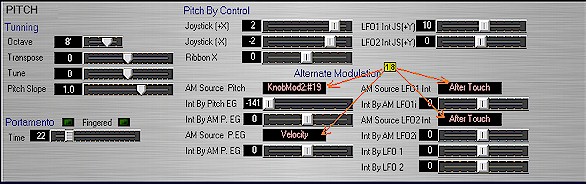
When the  button is selected the Pitch panel is brought into view. From this panel all
Pitch related parameters can be adjusted. Again all AM sources are selected from
name windows and chosen from pop-up list .
Portamento and Fingered selections are turned on and off by using the
button is selected the Pitch panel is brought into view. From this panel all
Pitch related parameters can be adjusted. Again all AM sources are selected from
name windows and chosen from pop-up list .
Portamento and Fingered selections are turned on and off by using the  toggle.